Import labeled sequence
If you have an image file which contains labels or binaries stored in a separate channel, you can import it and then use GA3 analysis to turn data from channels into binary layers.
Step 1: Import the image file
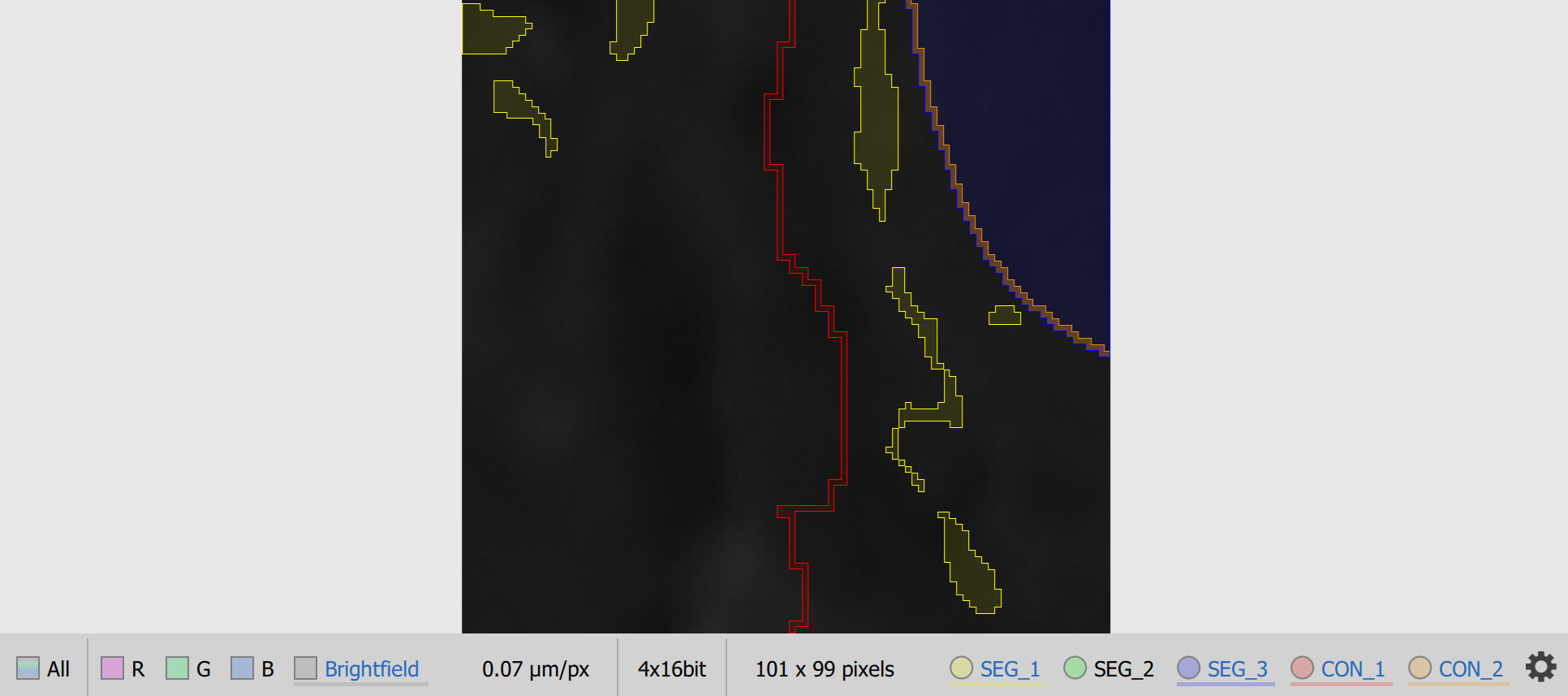
Use the import steps from Import image sequence. After conversion, you will have an ND2 file with labels or binaries in separate channels.
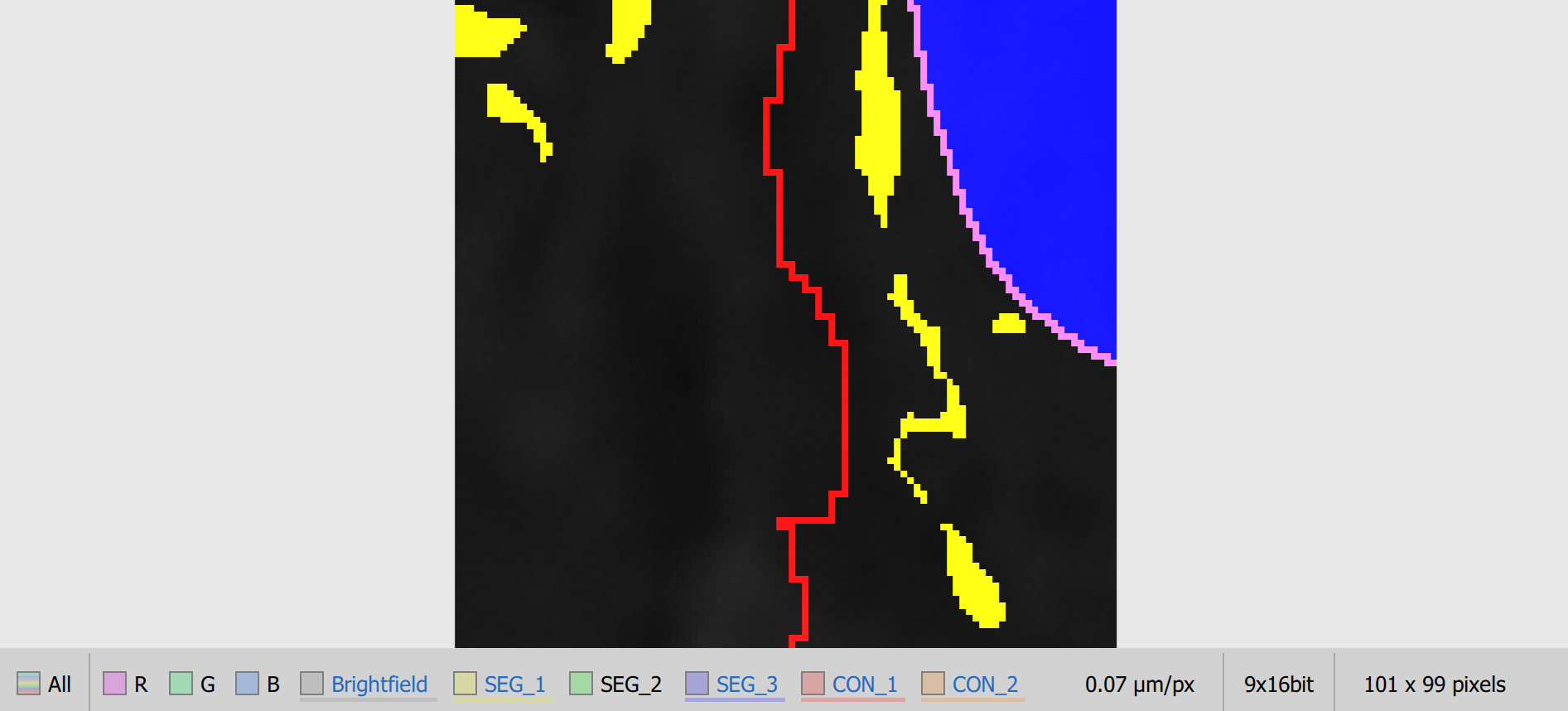
In this example we can see four color channels (R, G, B, Brightfield) and five channels with labels or binaries (SEG_1, SEG_2, SEG_3, CON_1, CON_2). For clarity, only some of those binaries are shown in the image.
Step 2: Create a GA3 recipe
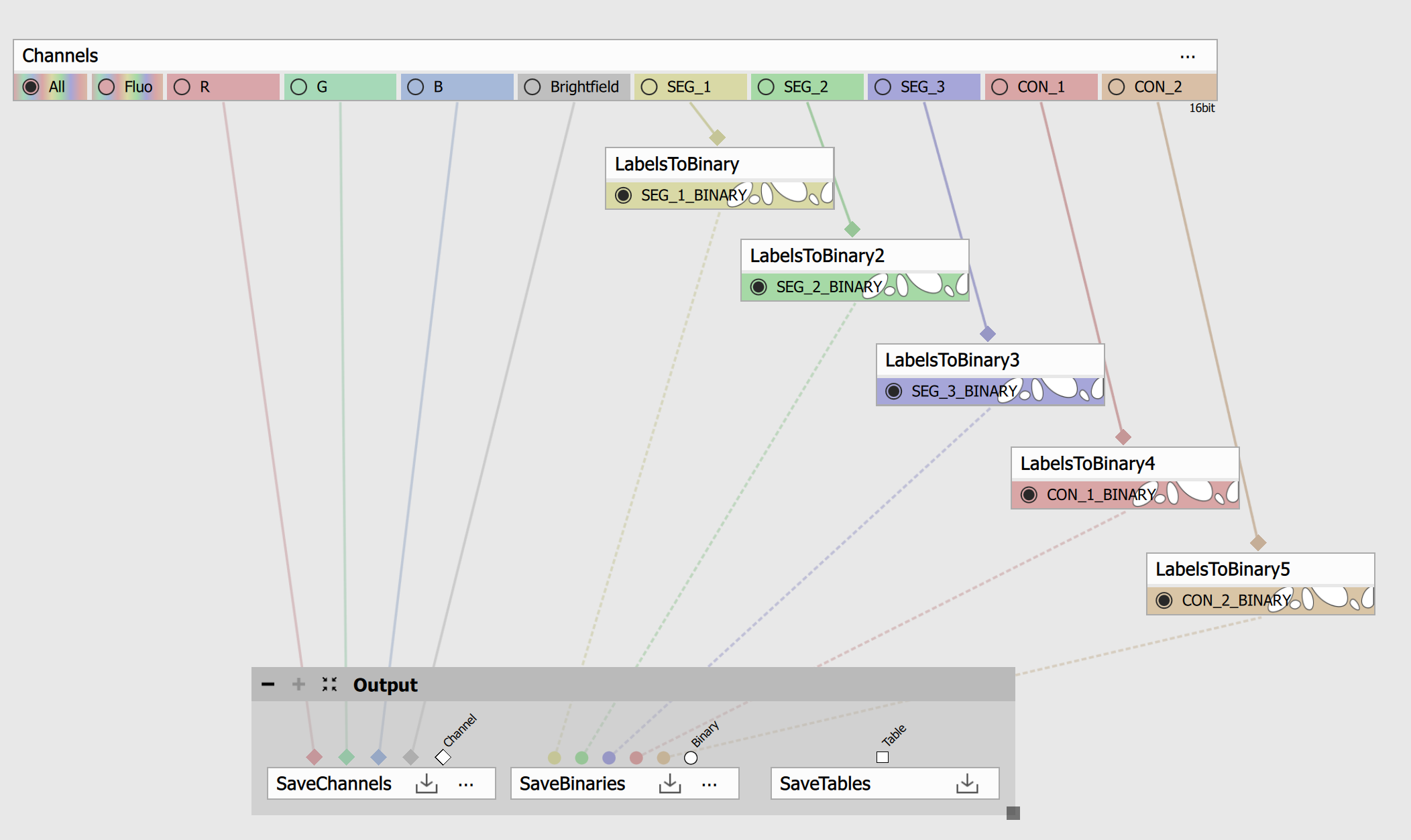
Open the Design page and create a new recipe. For each channel with labels or binaries, add a Labels to Binary node and connect it to the corresponding channel. Make sure you also save the outputs of the nodes using Save binaries node, in this node you can also select if you want to store the binary layers into the ND2 file itself or into associated .h5 file. Do not forget to save the four original color channels using Save channels node as well.
Step 3: Run the recipe
Run the recipe to process the image and convert channels with labels or binaries into binary layers.