Segmentation
Image segmentation is the process of dividing an image into meaningful parts, such as objects and background. Objects are sets of adjacent pixels. Meaning the pixels touch either side-by-side or diagonally, forming a continuous shape.
Segmented objects are easier to analyze as they can be counted or measured.
Threshold
Thresholding is the simplest segmentation method available.
Threshold
Separates objects from the background by turning pixels with values inside given intensity range into objects and everything else into background.
The threshold node performs following steps:
- Selects pixels falling inside the intensity threshold range:
- automatic - the range is determined from the image data frame-by-frame or
- manual - the global range bounds (low, high) is set manually
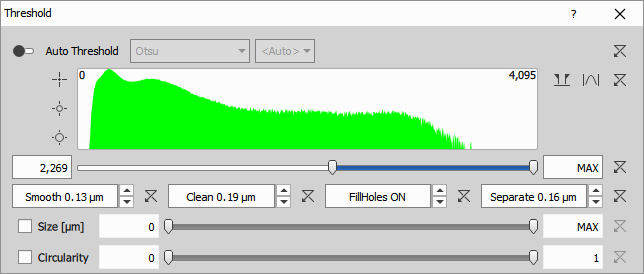
- Optionally post-processes the binary using morphological operations (in that order):
- Smooth - smooths the object edges (connects nearby objects)
- Clean - removes small objects caused by noise
- Fill Holes - ON / OFF
- Separate - separates objects that are close to each other
- Optionally filters the objects based on:
- Size - where object EqDiameter must fit into the specified range
- Circularity - where object must fit into the specified range
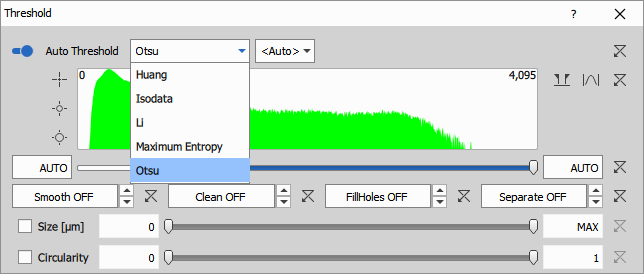
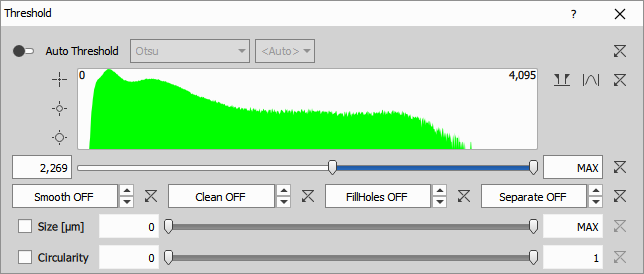
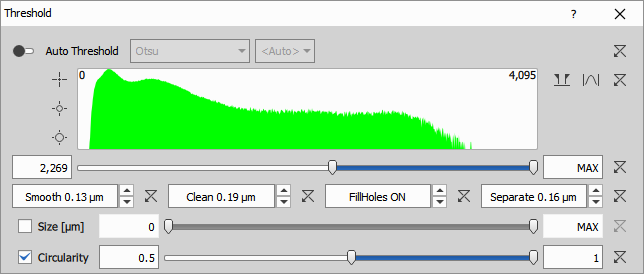
Automatic threshold calculates the intensity range from histogram on each frame independently. Each method sets the threshold differently.
There are these methods available:
Parameters
Input
- A (Channel): Input intensity image to be segmented
Output
- R (Binary): Output segmented binary with the name of the binary layer.
Control
AutoThresholdOn (Number)
AutoThresholdMethod (Text)
AutoThresholdIsDark (Number)
IntensityLow (Number): Minimum intensity value a pixel must have to be part of an object.
IntensityHigh (Number): Maximum intensity value a pixel must have to be part of an object.
Smooth (Number)
Clean (Number)
Fill (Number)
Separate (Number)
FilterBySize (Number)
SizeLow (Number)
SizeHigh (Number)
FilterByCircularity (Number)
CircularityLow (Number)
CircularityHigh (Number)
See also: Threshold (group)
RGB Threshold
Separates objects from the background by turning pixels with RGB values inside given intensity range into objects and everything else into background.
The RGB threshold is very similar to the Threshold. It has more ranges to handle 3 channel image instead of a single channel image.
The ranges can be defined in RGB or HSI color models.
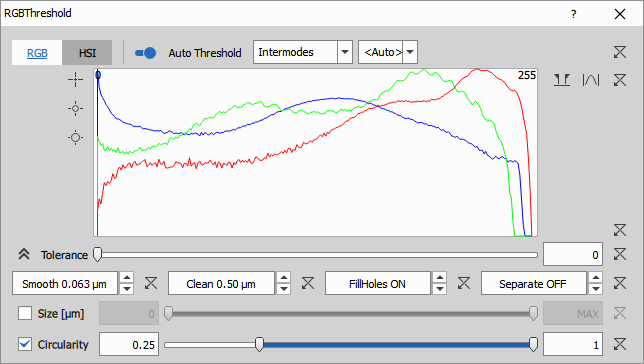
There are three ranges one for each channel: Red, Green Blue and a tolerance to enlarge the range by a given amount.
For a pixel to become an object it must be within all three ranges otherwise it is a background pixel.
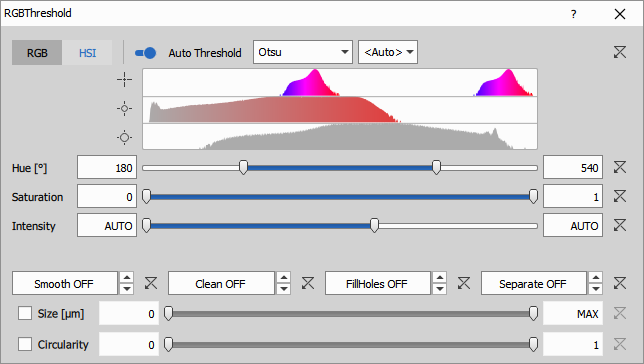
There are three ranges: Hue, Saturation and Intensity. The HSI representation is useful for segmenting objects with a typical hue (stain).
- Hue (2x 0° - 360°) is the color tint (red, yellow, green, and blue). Values in the range and histogram are displayed twice (two full circles 720°) in order to be able to make a range covering 0°/360° from both sides.
- Saturation (0.0-1.0) is colorfulness of the hue. It ranges from gray (0.0) - no hue - to full hue (1.0)
- Intensity (0.0-1.0) is the brightness.
Parameters
Input
- A (Channel): Input intensity image to be segmented
Output
- R (Binary): Output segmented binary with the name of the binary layer.
Control
AutoThresholdOn (Number)
AutoThresholdMethod (Text)
AutoThresholdIsDark (Number)
IsHSI (Number)
RedLow (Number)
RedHigh (Number)
GreenLow (Number)
GreenHigh (Number)
BlueLow (Number)
BlueHigh (Number)
RgbTolerance (Number)
HueLow (Number)
HueHigh (Number)
SaturationLow (Number)
SaturationHigh (Number)
IntensityLow (Number)
IntensityHigh (Number)
Smooth (Number)
Clean (Number)
Fill (Number)
Separate (Number)
FilterBySize (Number)
SizeLow (Number)
SizeHigh (Number)
FilterByCircularity (Number)
CircularityLow (Number)
CircularityHigh (Number)
See also: Threshold (group), Threshold
Multilevel Otsu
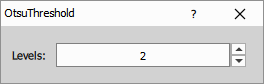
Perform automatic image thresholding with Otsu method.
Parameters
See also: Threshold (group)
Spot detections
Bright Spots
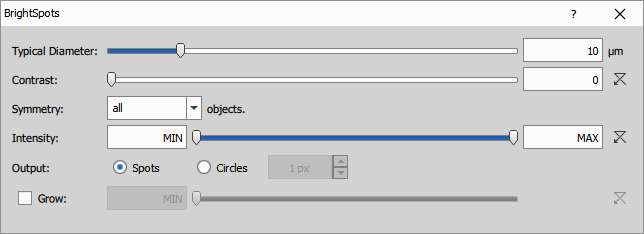
Finds local extrema using Laplacian of Gaussian filter. The local extrema are then grown to a specified intensity threshold. Resulting objects do not have holes. It is useful for round shapes with similar size, such as nuclei or spots where the objects are bright and background is dark.
Parameters:
- Typical Diameter defines the expected object diameter.
- Intensity filters spots by their pixel intensity.
- Contrast filters spots by how strongly they stand out from their local surroundings. Increasing it removes weak, low-contrast spots.
- Spots detect center points only, displayes circle with Typical Diameter.
- Circles create binary circles with user defined pixel size.
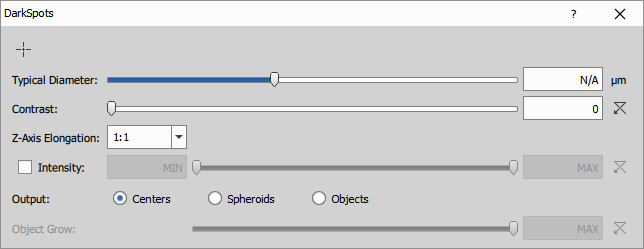
- Centers detect center points only, displayes circle with Typical Diameter.
- Spheroids create spheroid-shaped binary objects around the detected centers.
- Objects grows segmented regions from the detected centers, which can be influenced by the Object Grow option.
- Z-Axis Elongation can be used to stretch or compress objects along the Z axis.
When Typical Diameter is set to N/A, processing is skipped until a numerical value is entered, preventing unnecessary rendering.
In the Volume view, the additional picker can be used to adjust Typical Diameter.
Parameters
Input
- A (Channel): Input intensity image to be segmented
Output
- R (Binary): Output segmented binary with the name of the binary layer.
Control
IsDark (Number)
Diameter (Number)
Contrast (Number)
Symmetry (Number)
IntensityLow (Number)
IntensityHigh (Number)
GrowEnabled (Number)
GrowLimit (Number)
GenerateSpots (Number)
SpotSize (Number)
Dark Spots
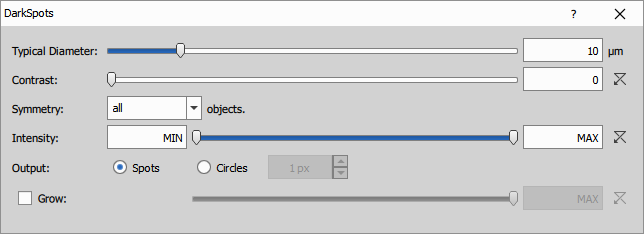
Finds local extrema using Laplacian of Gaussian filter. The local extrema are then grown to a specified intensity threshold. Resulting objects do not have holes. It is useful for round shapes with similar size, such as nuclei or spots where the objects are bright and background is dark.
Parameters:
- Typical Diameter defines the expected object diameter.
- Intensity filters spots by their pixel intensity.
- Contrast filters spots by how strongly they stand out from their local surroundings. Increasing it removes weak, low-contrast spots.
- Spots detect center points only, displayes circle with Typical Diameter.
- Circles create binary circles with user defined pixel size.
- Centers detect center points only, displayes circle with Typical Diameter.
- Spheroids create spheroid-shaped binary objects around the detected centers.
- Objects grow segmented regions from the detected centers, which can be influenced by the Object Grow option.
- Z-Axis Elongation can be used to stretch or compress objects along the Z axis.
When Typical Diameter is set to N/A, processing is skipped until a numerical value is entered, preventing unnecessary rendering.
In the Volume view, the additional picker can be used to adjust Typical Diameter.
Parameters
Input
- A (Channel): Input intensity image to be segmented
Output
- R (Binary): Output segmented binary with the name of the binary layer.
Control
IsDark (Number)
Diameter (Number)
Contrast (Number)
Symmetry (Number)
IntensityLow (Number)
IntensityHigh (Number)
GrowEnabled (Number)
GrowLimit (Number)
GenerateSpots (Number)
SpotSize (Number)
Special detections
Cellpose3
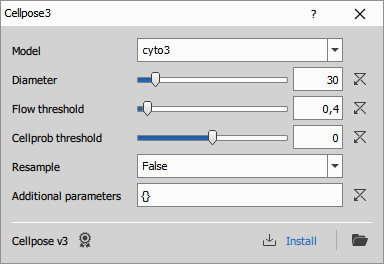
Uses Python Cellpose v3 to segment cells. Works well for noisy, blurry and low-resolution images. For more details see the Cellpose documentation, especially the models and settings.
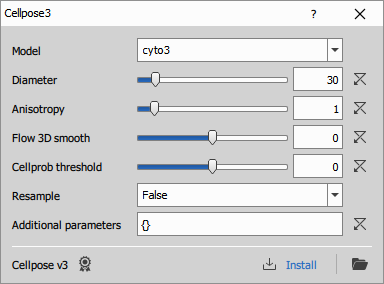
Parameters
Input
A0 (Channel): Channel to segment.
A1 (Channel, Optional): Channel that is helpful in models trained with images with a nucleus channel.
Output
- R0 (Binary): Segmented binary image.
Control
P0 (Text): Model
P1 (Number): Diameter
P2 (Number): Resample
P3 (Number): Flow threshold
P4 (Number): Cellprob threshold
P5 (Text): Additional parameters
See also: Installing Cellpose, Omnipose for bacterias, Python
Cellpose SAM
Uses Cellpose v4, an AI model based on the Segment Anything Model (SAM), to segment cells. Its SAM-based backbone makes it more flexible when handling unusual or previously unseen cell shapes.
Connecting the node
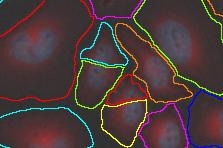
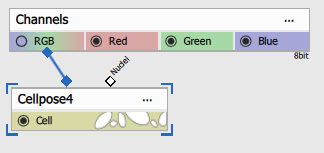
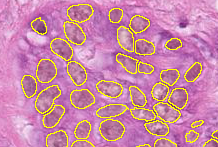
[The Cellpose-SAM] has been trained with three different channels for H&E images, and for cellular images it has been trained with the cytoplasm and nuclear channels in any order, with the other channel set to zero.
(see the channels documentation)
Typical use-case is when single input is connected to a channel with Cell/Cytoplasm expression.
Connecting Nuclei to DAPI improves the segmentation (see the next tab).
| Connected node | Example image |
|---|---|
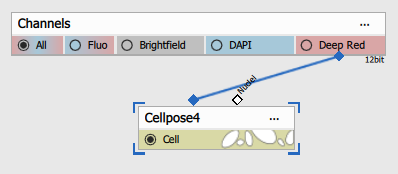 | 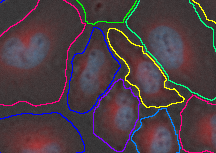 |
Both inputs are connected:
- first to Cell/Cytoplasm channel and
- second to Nuclei channel.
| Connected node | Example image |
|---|---|
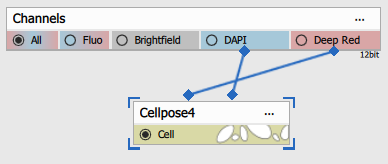 |  |
First input is connected to RGB (3-channel) H&E stained image. The second channel must remain disconnected.
| Connected node | Example image |
|---|---|
 |  |
Configuring the node
Model:
- cpsam_v2: Newer Cellpose SAM model with improved handling of low-contrast areas.
- cpsam: Original Cellpose SAM model.
- Custom: Uses a Cellpose-compatible model file selected by the user. See below for instructions for installing the
cpdinoandcpdino-vitbmodels.
Custom model file: Select the Cellpose model file to use. This option is available when Model is set to Custom.
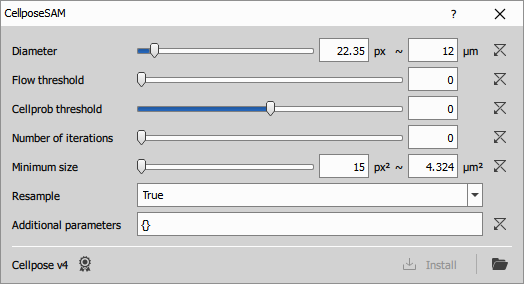
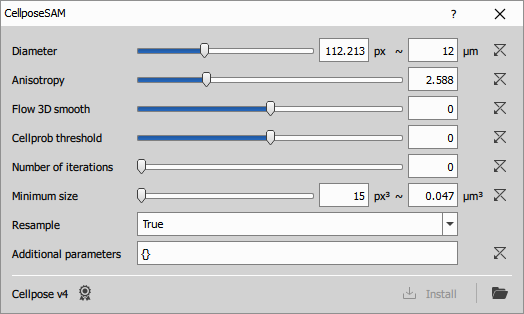
Diameter: Expected diameter of a typical cell. For calibrated images, the initial value is set to 12 µm. Cellpose uses this value to adjust the processing scale. Set Diameter to 0 to process the image without diameter-based rescaling.
Cell probability threshold: Lowering the value finds more objects, but can also add noise. Increasing it produces fewer, more conservative objects.
Number of iterations: Leave at 0 to let Cellpose choose the value automatically. Increase it only for large or elongated objects that are not segmented correctly.
Minimum size: Removes segmented objects smaller than the selected area.
Resample: Refines object boundaries at the original image resolution. Disable it only when faster processing is more important.
Additional parameters: Advanced Cellpose options. If needed, enter options as a Python dictionary, for example:
{"bsize": 512, "tile_overlap": 0.2}
- Flow threshold: Increase if you don’t see enough objects, decrease if you see too many.
- Anisotropy: Takes into account how sampled Z-axis is compared to x and y. For calibrated images, default is
Anisotropy = calibrationZ / calibrationX. - Flow 3D smooth: Increase it if objects are fragmented between Z-slices or have ring-like artefacts; high values can blur boundaries or merge nearby objects.
If the NisCellpose4 environment has not been previously installed (typically during NIS-Express installation) the following error is shown:
Installing Cellpose
Until it is installed the settings dialog contains a link to install it.
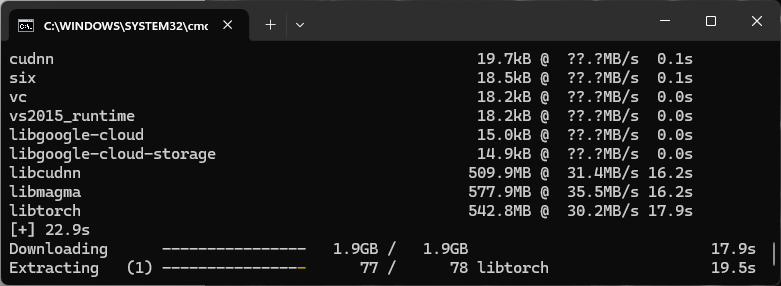
After the environment installation, disable and enable the Python node to update its status.
Installing cpdino and cpdino-vitb
Cellpose supports cpdino and cpdino-vitb models. cpdino-vitb is the smaller model, requires less memory and runs faster compared to cpdino.
They work well for detecting large, long or unusual objects and they allow the user to change the size of tiles. Cellpose SAM uses fixed 256 × 256 pixel tiles. DINO models use 384 × 384 pixel tiles by default and allow the tile size to be changed. Tiles divide the image into smaller pieces for processing. Changing the size can improve segmentation accuracy for objects that stretch through multiple tiles.
To use larger tiles with a DINO model, enter this in Additional parameters:
{"bsize": 512, "tile_overlap": 0.2}.
bsize sets the tile width and height in pixels. tile_overlap sets the overlap between neighbouring tiles. For more information visit the Cellpose documentation.
How to set the models up:
- Download the cpdino or cpdino-vitb model file.
- In the Cellpose SAM node, select Custom, then in Custom model file select the downloaded model.
- Click the Open environment folder button, then open Command Prompt in this directory. (Type cmd into address bar and press Enter.)
- Paste into Command Prompt
.\python.exe -m pip install "git+https://github.com/facebookresearch/dinov3"- Verify the installation.
.\python.exe -c "from cellpose.vit import dinov3_vitl16; print('installation was successful')"- Restart NIS Express and the model should be available.
Parameters
Input
A0 (Channel): Channel to segment.
A1 (Channel, Optional): Channel that is helpful in models trained with images with a nucleus channel.
Output
- R0 (Binary): Segmented binary image.
Control
P0 (Number): Diameter
P1 (Number): Flow threshold
P2 (Number): Cellprob threshold
P3 (Number): Number of iterations
P4 (Number): Minimum size
P5 (Number): Resample
P6 (Text): Additional parameters
See also: Omnipose for bacterias, Python
EfficientV2-UNet
Runs a Python EfficientV2-UNet model to segment histological RGB images. For details and training code, see the EfficientV2-UNet repository on GitHub.
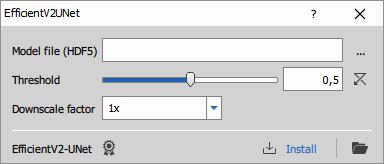
- Model file: Path to a trained model saved as an HDF5 (.h5) file
- Threshold: Threshold applied to the model’s output probability map to produce the final binary mask
- Downscale: Downscales the input image before prediction to speed up processing and reduce memory usage.
Parameters
Input
- A0 (Channel)
Output
- R0 (Binary)
Control
mode (Number)
code (Text)
refresh (Number)
environmentDesc (Text)
outprocType (Number)
environmentName (Text)
outprocPath (Text)
editingOutsidePath (Text)
editingOutsideEnabled (Number)
pyParDefs (Text)
devModeKey (Text)
description (Text)
P0 (Text)
P1 (Number)
P2 (Number)
Homogeneous Area
Detect object on a homogenous background based on their edges
Parameters
IHC Classification
Diagnose Immunohistochemistry automatically
Parameters
InstanSeg
Runs a Python InstanSeg model to segment brightfield or fluorescence images. For details and training code, see the InstanSeg repository on GitHub.
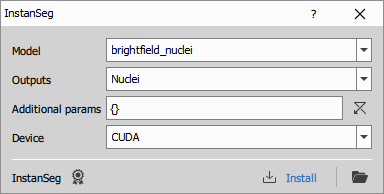
By default, the node provides two built-in models: brightfield_nuclei and fluorescence_nuclei_and_cells.
To use a custom model, click the folder button (after installation). It will open the environment folder ...\PythonEnvs\NisInstanSeg. From there, navigate to ...\PythonEnvs\NisInstanSeg\lib\site-packages\instanseg\bioimageio_models where the models are stored, and update model-index.json to include your model. Finally, enter your model’s name in the node GUI model selection. Note that custom models are currently not supported by the NIS-Elements GA3 executor.
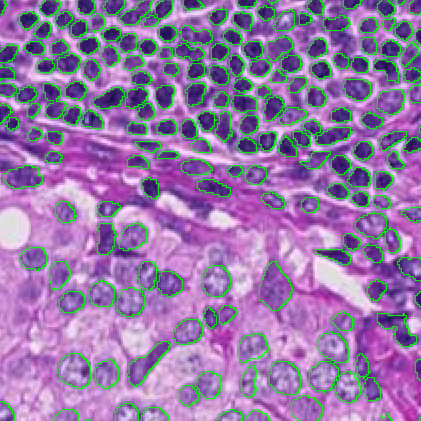
Segmentation using InstanSeg’s built-in model “brightfield_nuclei” on an H&E image.
H&E image: InstanSeg (v0.1.1)
- Model: Model name; choose from the list or enter your custom model name
- Outputs: Some models produce both nuclei and cell masks. Choose which output to generate. If All is selected, the node always has two outputs; when the selected model does not support two outputs, the second output will be empty.
- Additional params: Additional options as a JSON dictionary, passed directly to
InstanSeg.eval_small_image - Device: Select where segmentation runs: CPU or GPU (NVIDIA/CUDA).
Parameters
Input
- A0 (Channel)
Output
- R0 (Binary)
Control
mode (Number)
code (Text)
refresh (Number)
environmentDesc (Text)
outprocType (Number)
environmentName (Text)
outprocPath (Text)
editingOutsidePath (Text)
editingOutsideEnabled (Number)
pyParDefs (Text)
devModeKey (Text)
description (Text)
P0 (Text)
P1 (Text)
P2 (Text)
P3 (Text)
Labels to Binary
Converts a labeled image into a binary layer.
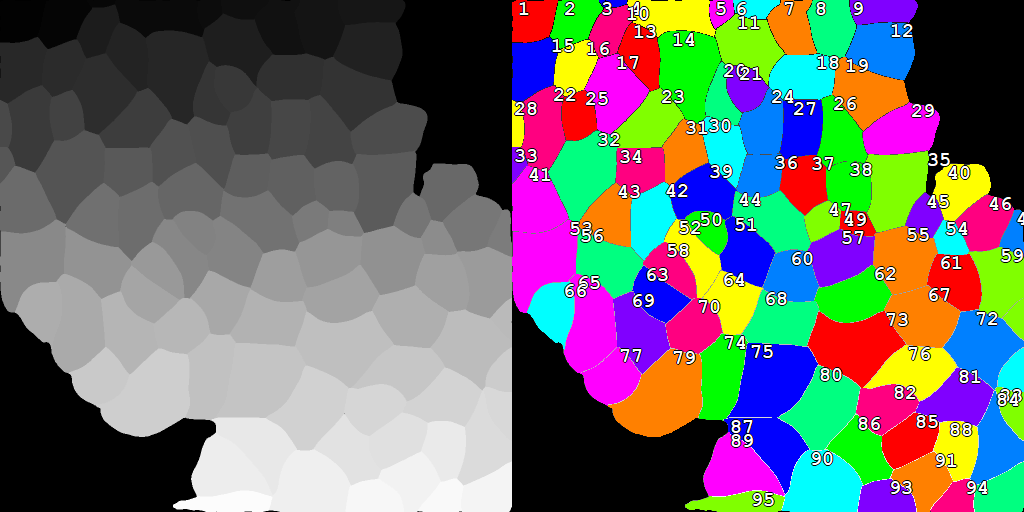
Parameters
StarDist
Runs a Python StarDist model to segment images. It works best for round and star-like objects. For details and training code, see the StarDist repository on GitHub.
When installation fails
OSError: [WinError 1314] A required privilege is not held ...If this error happens the user has no right to create symbolic links.
Th easiest solution on Windows 11 is to Enable Windows Developer Mode: Settings → System → For Developers → Developer Mode
By default, the node provides these built-in models for 2D:
- Versatile fluo nuclei:
2D_versatile_fluo - Versatile H&E nuclei:
2D_versatile_he - DSB 2018:
2D_paper_dsb2018 - Demo:
2D_demo
and this for 3D:
- Demo:
3D_demo
To use a custom model, select Custom model in selection and click the ... button. Than select folder containing your model.
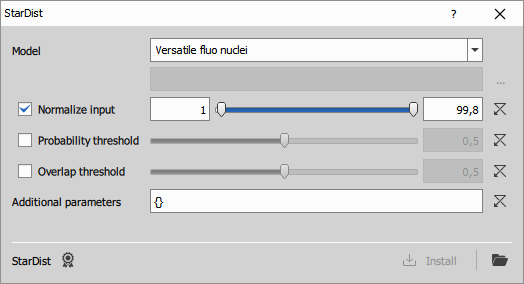
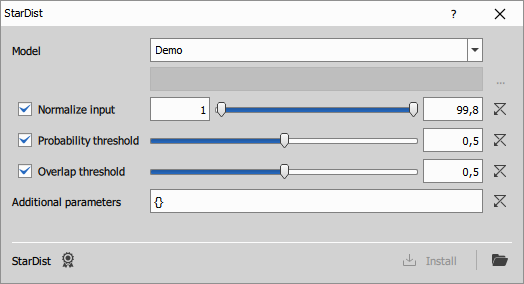
- Model: Select built-in or custom model
- Normalize input: If enabled, the input image will be normalized to floating-point format so that the selected intensity percentiles are mapped to the 0–1 range.
- Probability threshold: If enabled, overrides the model’s default probability threshold with the specified value.
- Overlap threshold: If enabled, overrides the model’s default overlap (NMS) threshold with the specified value.
- Additional parameters: Additional options as a JSON dictionary, passed directly to
StarDist2D.predict_instances
Parameters
Input
- A0 (Channel)
Output
- R0 (Binary)
Control
mode (Number)
code (Text)
refresh (Number)
environmentDesc (Text)
outprocType (Number)
environmentName (Text)
outprocPath (Text)
editingOutsidePath (Text)
editingOutsideEnabled (Number)
pyParDefs (Text)
devModeKey (Text)
description (Text)
P0 (Text)
P1 (Text)
P2 (Number)
P3 (Number)
P4 (Number)
P5 (Number)
P6 (Number)
P7 (Number)
P8 (Number)
P9 (Text)
Tight Borders
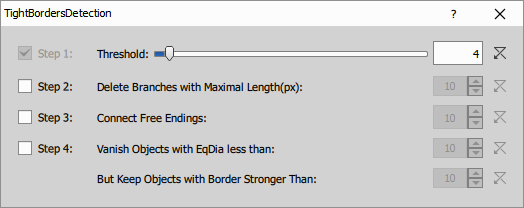
Performs the segmentation of binary result using the tight borders detection.
- Threshold detects pixels with intensities higher than the specified threshold value. The higher the value the less objects are detected.
- Delete Branches with Maximal Length (px): Deletes branches with length smaller than the length specified.
- Connect Free Endings: Connects free endings of the neighboring branches.
- Vanish Objects with EqDia less than: Objects with EqDia (equivalent diameter of a circular object) smaller than the defined value will be deleted.
- But Keep Objects with Border Stronger Than: Objects with their border stronger than the defined value will be kept.
Parameters
Interactive
Draw Rectangle
Draws a rectangle (region of interest) that is applied to all frames and creates a separate binary layer.
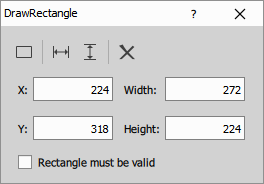
You can set the rectangle position and size manually in the edit boxes, or click Draw rectangle to draw it directly in the image.
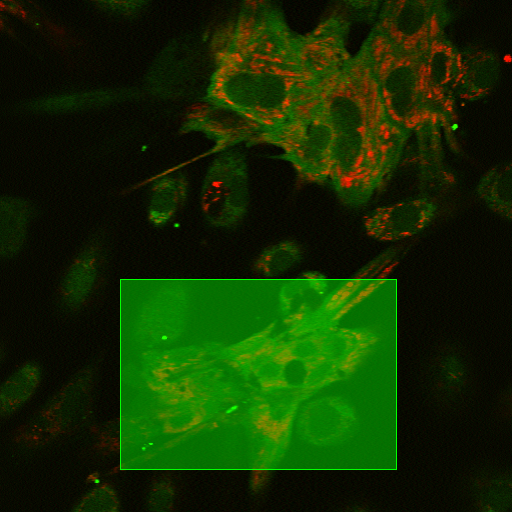
- X, Y, Width, Height: Define the rectangle.
- Rectangle must be valid: Throws an error during execution if the rectangle is missing or invalid. Useful in wizards when the user must define the ROI.
Parameters
Draw Objects
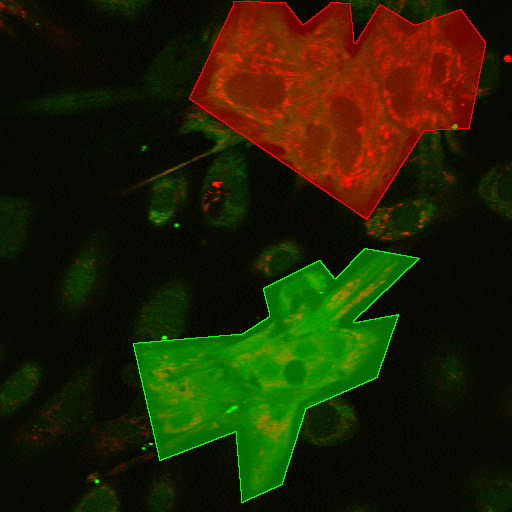
Draws objects that are applied to all frames and creates a separate binary layer.
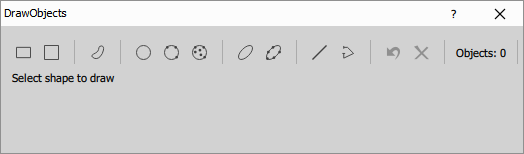
Select the desired shape by clicking a button, then draw it directly in the image. You can undo the last shape or remove all objects.
Overlapping objects are merged into a single object. You can choose whether the output is a binary mask or a labeled mask by toggling the Color by ID button.
Supported shapes:
- rectangle
- square
- polygon
- circle
- ellipse
- line
- polyline
After clicking a shape button, drawing instructions are displayed.