ND processing & conversions
ND processing refers to functions that operate on a stack of frames – either on a specific dimension type or on any type of dimension. Conversions on the other hand is a heterogeneous set of nodes that converts between channels, binaries and tables or changes their fundamental aspects (e.g. bit-depth or size).
Stack reduction
Stack reduction nodes reduce the selected dimension into a single frame.
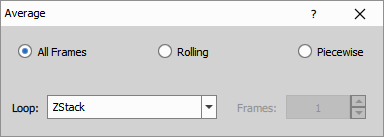
Most of the nodes have the same dialog as the Average node where one can select:
Method:
- All frames - reduces all frames into a single frame.
- Rolling - uses a window around current frame to for the operation; it keeps the dimension size.
- Piecewise - divides the dimension into pieces and reduces them separately.
Loop/dimension to be reduced
Number of frames for Rolling and piecewise
Average
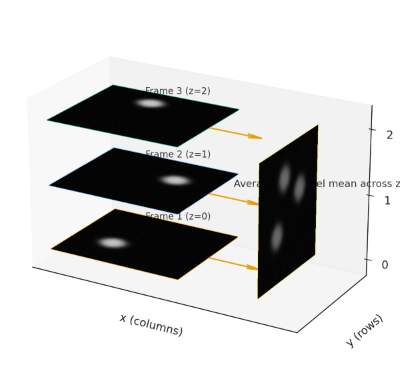
Calculates average per-pixel value over a loop/dimension (e.g. time-lapse).
See also: Average (in workflows), Stack reduction (group)
Best Focus Plane
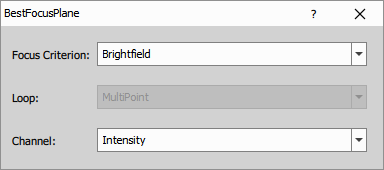
Selects the most in-focus image from a loop.
Parameters
See also: Stack reduction (group)
EDF
Creates focused image by taking small in-focus regions from all z-planes.
This node does’t have a control dialog.
See also: EDF (in workflows), Stack reduction (group)
Integrate (Sum)
Sums per-pixel values over a loop/dimension (e.g. time-lapse)
See also: Stack reduction (group)
Max IP
Finds per-pixel maximum value over a loop/dimension (e.g. time-lapse).
See also: MaxIP (in workflows), Stack reduction (group)
Max IP Ref
Finds per-pixel maximum value and takes the value from a ref image over a loop/dimension (e.g. time-lapse)
Parameters
See also: Stack reduction (group)
Median
Finds per-pixel median value over a loop/dimension (e.g. time-lapse).
See also: Median (in workflows), Stack reduction (group)
Quantile Image
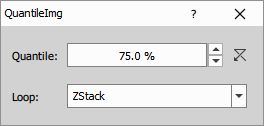
Finds per-pixel quantile value over a loop/dimension (e.g. time-lapse).
Parameters
See also: Stack reduction (group)
Min IP
Finds per-pixel minimum value over a loop/dimension (e.g. time-lapse)
See also: Stack reduction (group)
Select Frame
Selects subset of frames from a loop/dimension (e.g. time-lapse).
- Loop - dimension the frames are selected from
- Select frame - selection type
- Previous, Next - takes one relative frame to the current
- First, Middle, Last - takes one absolute frame
- Relative, Absolute - takes arbitrary number of frames based on the settings below
- Start/Count/Step - determines which and how many frames are taken (enabled only for Relative and Absolute)
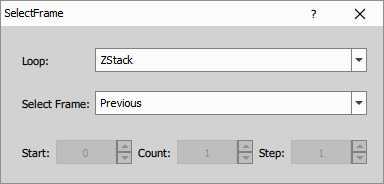
Parameters
See also: Select frame (in workflows), Stack reduction (group)
Select Single Frame
Selects one image at given index from a loop/dimension (e.g. time-lapse).
Simplified version of Select Frame that guarantees only one output frame. As a result dynamic parameter can be attached
to the Index.
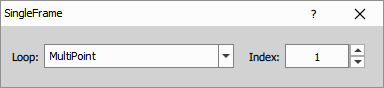
See also: Stack reduction (group)
Shading Image
Creates shading image by analysing images from a loop/dimension (e.g. time-lapse).
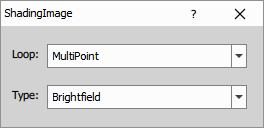
Parameters
See also: Stack reduction (group)
Stitch Multi Points
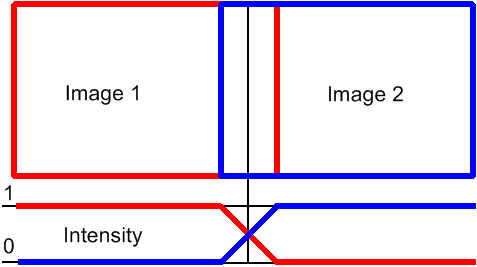
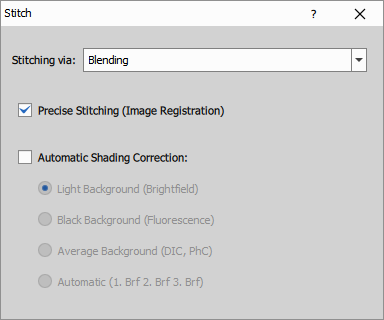
Stitches multiple images from a multi-point loop into a single larger image.
- Stitching method
- how the overlapping area is handled
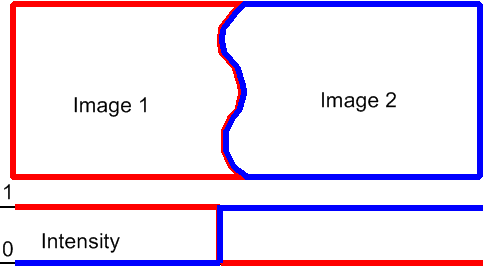
- Blending: Overlapping image parts will be blended
- Multi-pass blending: improved blending algorithm
- Optimal path: A contour where the two overlapping images differ the least is computed. The images are then stitched along this contour.
- Nearest
- Overlap
| Blending | Optimal path |
|---|---|
 |  |
- Precise Stitching
- Apply image registration
- Automatic shading correction
- Optionally use the Automatic Shading Correction and choose the type which best represents your sample - Brightfield, DIC like or Fluorescence with offset enabling to heighten brightness level of the corrected image to make objects in dark areas more visible.
See also: Stack reduction (group), Stitch multi-points (in workflows)
Stack reduction Binary
Binary stack reduction nodes are analogous to the Stack reductions operating on channels.
And (intersection)
Makes intersection of all binaries over loop/dimension
See also: Stack reduction Binary (group)
Or (union)
Makes union of all binaries over loop/dimension
See also: Stack reduction Binary (group)
Select Single Binary
Selects one binary at given index from a loop/dimension (e.g. time-lapse)
See also: Stack reduction Binary (group)
Processing
Align
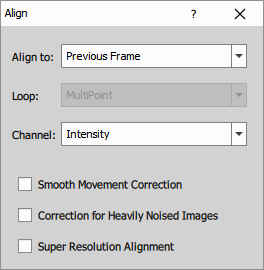
Move frames in order to stabilize the motion of the sequence.
- Align to Previous / First frame.
- Loop to be stabilized.
- Channel - In case there are more channels (All) select the one to use for calculation.
- Smooth Movement Correction to even out the harsh movements
- Correction for Heavily Noised Images applies denoising
- Super Resolution Alignment performs subpixel registration
Parameters
See also: Align frames (in workflows)
Equalize Intensity
Analyze image, calculate value of intensity and processes all frames.
This command enhances the dynamic range of any connected channel of an image which contains at least a Z dimension. It analyses the image, calculates values similar to auto-contrast values common for the whole time sequence and then processes all frames of the ND2 file. This method is robust to noise and preserves the original trends of the histogram.
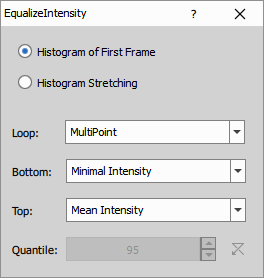
- Histogram of First Frame Histograms are reshaped to match the histogram of the first frame.
- Histogram Stretching For every frame a local Bottom and Top is computed, then the global bounds are computed as minimum of bottoms and maximum of tops. Finally all histograms are stretched so their bottom and top match the global bounds.
- Loop Defines the document loop over which the histograms are equalized (T, Z, MP).
- Bottom Select whether to match the minimum of intensity (Minimal Intensity) or ignore (Zero Value).
- Top Select whether to match the mean of intensity (Mean Intensity) or the given quantile (Quantile).
- Quantile Defines the upper intensity limit based on a user-specified percentile of pixel values. For example, setting the quantile to 95 ignores the top 5% of the brightest pixels when stretching the histogram. This option is enabled only if Quantile is selected in Top.
Parameters
Transformations
Nodes in this group can accept both Channels and Binaries and perform the same operation on all inputs.
Resize
Resize images and binaries.
- Pixel size Resize the image by entering an exact Width and Height in pixels.
- Percentage of original Resizes the image by a percentage of its current size.
- Scale down the maximum dimension to Resizes the image so that the largest dimension (width or height) fits within a given value, maintaining proportions.
- Maintain aspect ratio of The checkbox toggles whether the image aspect ratio is locked, while the edit box lets you type in a ratio value to preserve.
- Resize method Determines the algorithm used for resizing, which affects quality and smoothness.
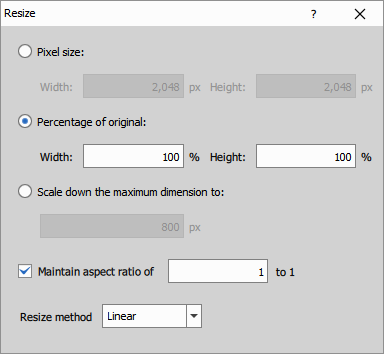
Parameters
See also: Transformations (group)
Rotate
Rotate images and binaries.
Rotates the image using the following tools:
- Draw a horizontal reference line Draw a horizontal reference line in the image to set the proper angle.
- Draw a vertical reference line Draw a vertical reference line in the image to set the proper angle.
- Rotate counterclockwise Rotates the image counterclockwise.
- Rotate clockwise Rotates the image clockwise.
- Angle Manually adjust the angle [°].
- Output is Specifies how the output image is cropped/preserved.
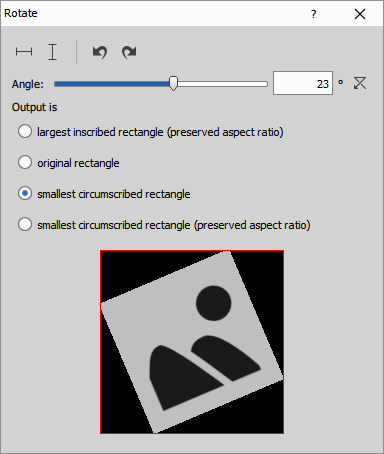
See also: Transformations (group)
Binary to Color
Convert
Convert binary into channel having one (1) in place of the objects and zero (0) in the background.
For getting the ID (or any other value) into the channel use the Convert using Table or Convert using Table (3D).
This node does’t have a control dialog.
Convert Using Table
Convert binary into floating-point channel having a value (ID by default) in place of the objects and zero (0.0) in the background.
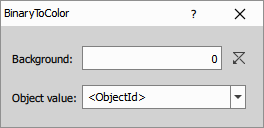
Parameters
Bitdepth
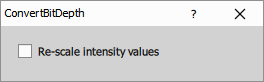
Change Bit Depth
Change the bit-depth and optionally rescale pixel values.
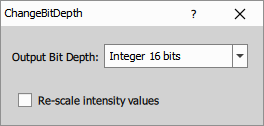
Parameters
Convert To Ref
Convert the bit-depth (with optional rescale) back to match the reference.
Channels
Merge Channels
Merge all connected channels into single output.
Split Channels
Separate a channel that contains multiple components.
Channel to Intensity
Convert input channels into intensity by averaging them
Labels & Classes
Binaries to Color
Convert binary inputs into intensity where values represent a binary layer ID (class)
Color to Binaries
Convert intensities representing a binary layer ID (class) into distinct binary layers
Render to RGB
The nodes in this group render image (optionally with binary) into RGB channel. Typical use-case is to save the RGB into a separate file such as Color to Single TIFs.
Color
Render channel input into RGB channel
See also: Render to RGB (group)
Binary
Render a binary input into RGB channel
See also: Render to RGB (group)
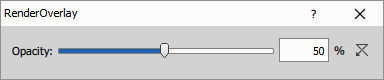
Overlay
Render a channel image with a binary overlay into RGB channel.
See also: Render to RGB (group)
Render to Table
The nodes in this group render image (optionally with binary) into a smaller RGB picture that is embedded into a result table row. It can be viewed as a tooltip or in an object catalog.
Render Frame
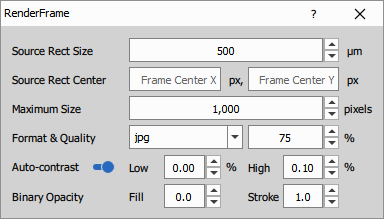
Render image frame (optionally with binary) into a RGB thumbnail stored in a table row.
- Source Rect Size Defines the size (in microns if calibrated) of the center portion of the frame that is cropped and rendered.
- Source Rect Center defines the center position of the crop. It can be used to move the crop away from the center.
- Maximum Size (in pixels) is the limit to which the rendered image is scaled down if it is larger.
- Format & Quality Specifies the image file format (jpg or png) and image quality in percent.
- Auto-contrast Adjusts the contrast of the rendered images by stretching the intensity values within a defined range. Define the Low and High percentile of intensity values to be clipped.
- Binary Opacity Controls the transparency of the binary objects (Fill) and their outline (Stroke). A value of 0 means fully transparent, while 1 means fully opaque.
Parameters
Input
A (Channel)
B (Table, Optional)
B1, B2, … (Binary, Optional, Multiple)
Output
- R (Table)
Control
sourceRectSize (Number)
sourceRectCenterX (Number)
sourceRectCenterY (Number)
fit (Text)
format (Text)
maxSize (Number)
quality (Number)
autocontrast (Number)
autocontrastThrLow (Number)
autocontrastThrHigh (Number)
binFillOpacity (Number)
binStrokeOpacity (Number)
See also: Render to Table (group), Well-plate view (in workflows)
Render Objects
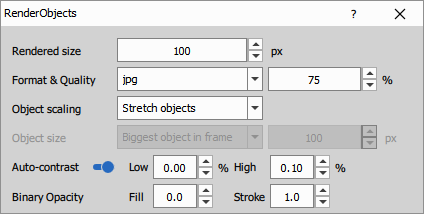
Render binary objects (optionally with underlying channel) into a RGB thumbnail stored in a table row.
- Rendered size Defines the size in pixels of the rendered objects.
- Format & Quality Specifies the image file format (jpg or png) and image quality in percent.
- Object scaling Select from stretched or fixed scale objects.
- Auto-contrast Adjusts the contrast of the rendered images by stretching the intensity values within a defined range. Define the Low and High percentile of intensity values to be clipped.
- Binary Opacity Controls the transparency of the binary objects (Fill) and their outline (Stroke). A value of 0 means fully transparent, while 1 means fully opaque.
Parameters
Input
A (Binary)
B (Channel)
Output
- R (Table)
Control
renderWidth (Number)
renderHeight (Number)
scaleOption (Number)
keepScaleOption (Number)
autoSizeOption (Number)
cropWidth (Number)
cropHeight (Number)
format (Text)
quality (Number)
autocontrast (Number)
autocontrastThrLow (Number)
autocontrastThrHigh (Number)
binFillOpacity (Number)
binStrokeOpacity (Number)
See also: Object catalog (in workflows), Render to Table (group)
RGB
RGB to Intensity
Convert RGB channel into intensity channel by averaging all three components
RGB to HSI
Converts red-green-blue into hue-saturation-intensity
HSI to RGB
Convert hue-saturation-intensity into red-green-blue
Python scripting
Python
The generic Python node allows to process and transform any inputs into any outputs using Python interpreter. The whole ecosystem of Python packages can be used inside GA3.
To get started, see the Python workflow examples.
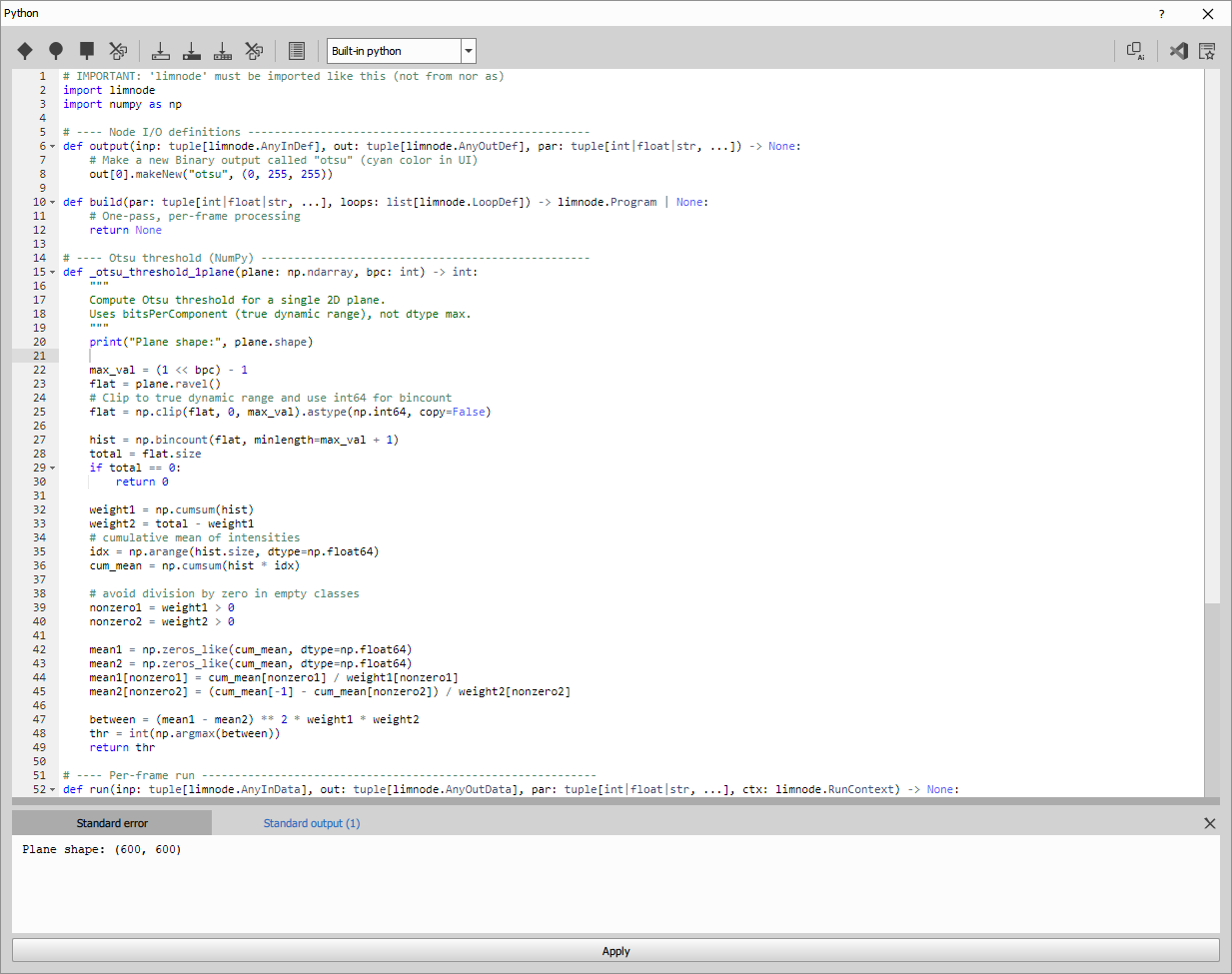
Inputs & outputs
Inputs and outputs can be added using the buttons in the top toolbar.
- Add image channel(s) input
- Add binary input
- Add table input
- Add image channel(s) output
- Add binary output
- Add table output
To remove them use buttons.
The tooltip on both inputs and outputs suggests how to access it in the code (e.g. inp[0], out[1]).

outputs(...) inside Python. e.g. if we have out[0].makeNewMono(...) the out[0] must be connected to the channel output, if we have out[0].makeNew(...) the out[0] must be connected to the binary output.User parameters
- Edit user parameters
P#that allow to customize python script by the user. The parameters are available to the script in all three function in thepartuple
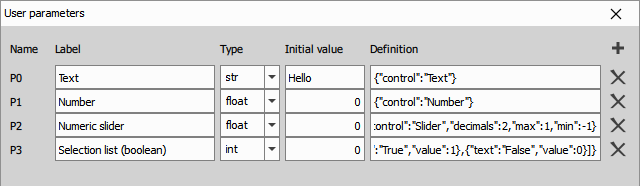
The definitions for controls are provided as JSON strings:
{"control":"Text"}
{"control":"Number"}
{"control":"Slider","decimals":2,"max":100,"min":1}
{"control":"Selection","list":[{"text":"True","value":1},{"text":"False","value":0}]}
After switching to the user mode (always in the wizard), the GA3 will present a user GUI instead of the python code. To go back to developer mode click the link. The developer mode can be protected with a password.
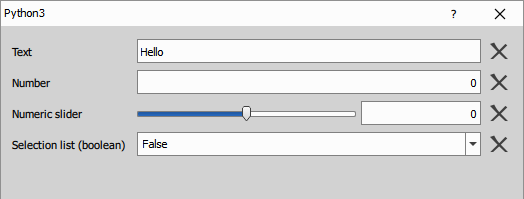
This node supports three user parameter types: int, float and string. Each type has its own set of available GUI controls. The tabs below list the controls for each type and the required fields.
Controls for float type are number, slider and selection.
- Number is a basic numeric input field.
control:"Number"
{"control":"Number"}- Slider is a range slider for continuous values with fixed precision, accompanied by an input field.
control:"Slider"decimals— integer ≥ 0 (number of decimal places)min— number (lower bound)max— number (upper bound)
{"control":"Slider", "decimals": 3, "min": 0.0, "max": 100.0}- Selection: a dropdown with labeled choices.
control:"Selection"list— array of items- each item:
text— string (label)value— number (float value)
- each item:
{"control":"Selection", "list": [{"text":"P" , "value": 1.0}, {"text":"N" , "value": -1.0}]}Controls for int type are number and selection.
- Number is a basic numeric input field.
control:"Number"
{"control":"Number"}- Selection is a dropdown with labeled choices.
control:"Selection"list— array of items- each item:
text— string (label)value— integer
{"control":"Selection", "list": [{"text":"True" , "value": 0}, {"text":"False" , "value": 1}]}Controls for string type are text, selection and path.
- Text is a basic text input field.
control:"Text"
{"control":"Text"}- Selection is a dropdown with labeled choices.
control:"Selection"list— array of items- each item:
text— string (label)value— string
{"control":"Selection", "list": [{"text":"A" , "value": "a"}, {"text":"B" , "value": "b"}]}Path is an input field with a browse button that opens the file or folder dialog.
control:"Path"type— one of"file","folder"mode— one of"open","save"
typechooses whether the dialog targets files or foldersmodeaffects both the dialog for"file"type (Open or Save as) and how relative paths are resolved during a GA3 execution"open": relative paths are resolved against the input file."save": relative paths are resolved against the output file.
{"control":"Path", "type": "file", "mode": "save"}Python interpreter
There are three option which python is invoked and how:
Internal python is for when the Python scripts run inside the NIS-Express process in an embedded python interpreter. It is faster but limited to modules shipped with NIS-Express.
External python is for when the user specifies which python interpreter to run. This option is for when additional python packages or modules have to be installed. In order not to disrupt the NIS-Express environment a completely different python environment is created with its python interpreter. Select
pythonw.exewindowless form. This option is to be used with environment managers like conda or mamba.Managed environment is for when an environment has to be transferred with the GA3 node. It is en extension of the previous option. Instead of specifying which python to run, the environment definition YAML is provided. Thus it can be then installed from the node GUI. This option is for advanced users. It is intended either as a last step in development of a python node or to be used in the user-mode entirely.
For the latest information where and how the managed environments are stored see this document.
Editing in VS Code
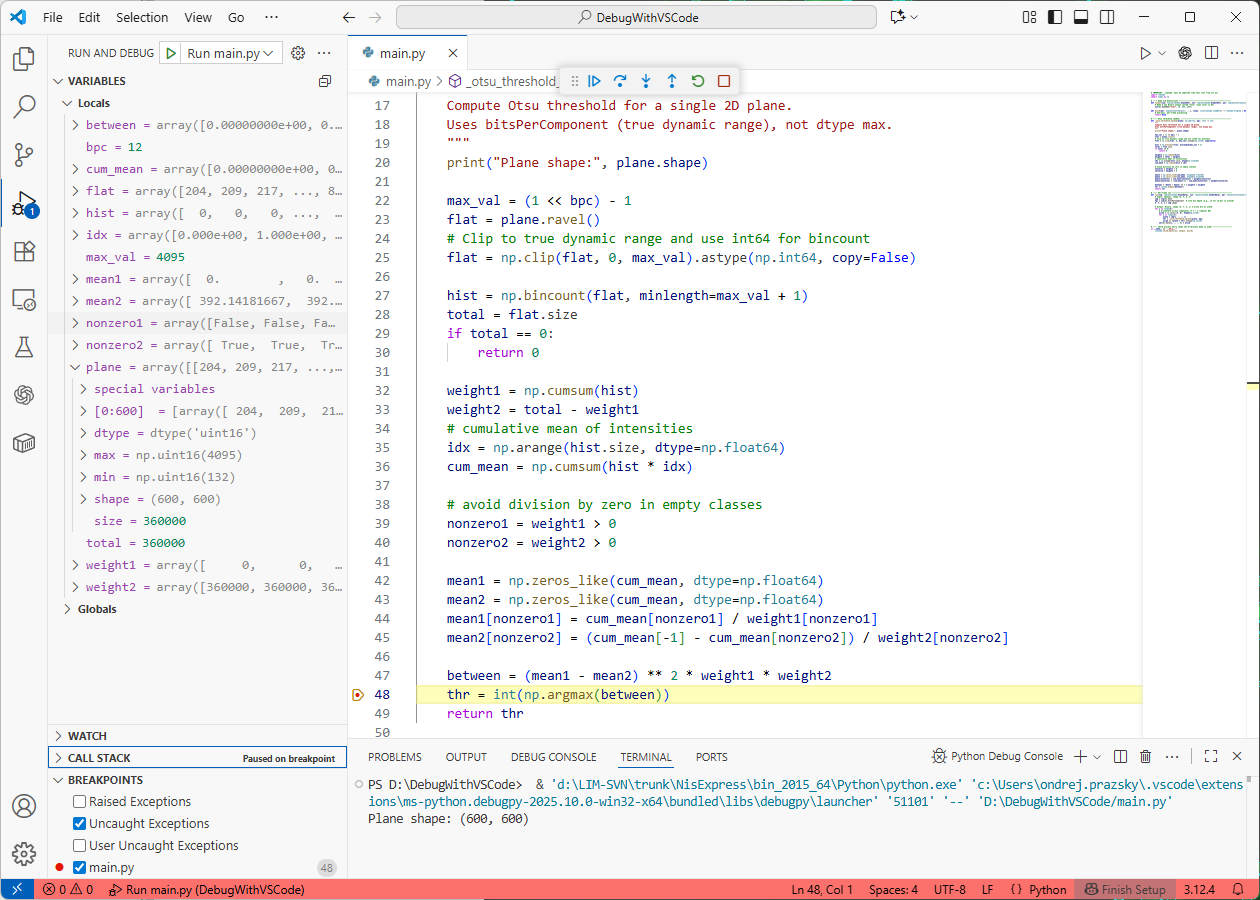
It is possible to edit and debug the code in VS Code by clicking the button. After selecting a working folder the the python file with the configuration is copied to that folder.
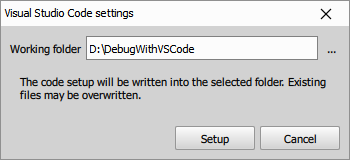
Another icon opens the VS Code.
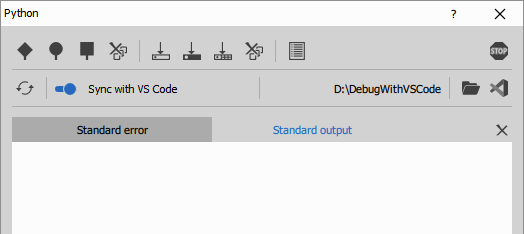
The GA3 node dialog hides the code as the editing happens elsewhere. The node can copy the code and run the code from the working folder automatically after any change change or manually. While doing so it copies the data (inp, out, …) parameters to the data folder to be accessible for the script.
The code in VS Code behaves as if it was called from the GA3 node.
The script
The default script looks like this:
| |
At the beginning of the script, always import limnode. This ensures that key functions are executed correctly.
import limnodeThere are three key functions that must always be present and have the correct number of input parameters:
output(inp, out, par): Defines the node outputsbuild(par, loops): Specifies how the run is called (e.g., two-pass processing).run(inp, out, par, ctx): Defines how each frame or volume is processed.
All important details about these functions can be seen inside:
%userprofile%\AppData\Local\Programs\NIS-Express\Python\Lib\site-packages\limnode.pyFor any other option than internal python, following piece of code must be present at the end of the script:
if __name__ == '__main__':
    from limnode import print
    limnode.child_main(run, output, build)
Function output(...)
The purpose of this function is to define all aspects of output parameters by modifying out tuple items.
output is typically called before the run of GA3 after some user change upstream the graph. The information provided is used by the downstream nodes in GUI and run (for example table columns defined here are listed dependent nodes).
In GA3 output parameters can have assigned input or can be create new output. When they have assigned input, they inherit name, color and metadata such as the number of components or column definitions (for tables) from the assigned input. Assigned output changes as the input gets reconnected.
New outputs however, must be fully defined.
For assigning all output items have method assign which takes input of the same type. For creating new output there are dedicated methods makeNew... All these methods return self and can be safely concatenated.
By default the node tries to assign to every output the first input of the same type. If this is not possible a new output is made.
For details see the limnode.py listing.
Channels and binaries
For channel data processing the bit-depth is very important:
- the node should accept any bit-dept on input (it can be as low as
uint8) - for computations it may convert to higher bit-depth (e.g. float64)
- depending on the algorithm it should output the original bit-depth or use higher if necessary
For binary processing too as:
- UInt8 means unpainted binaries where non-zero pixel is an object and zero is background
- Int32 means painted binaries where every pixel contains object id or zero for background
Do not take the max value from the numpy dtype as it can be misleading because of intermediate
bit-depths such as 10, 12, 14 all encoded in UInt16. Always use appropriate bitsPerComponent such as:
max_val = 2 ** out[0].bitsPerComponent - 1Example of assigning an input channel to output and changing it to float:
def output(inp: limnode.InDefTuple,
           out: limnode.OutDefTuple,
           par: limnode.UserParTuple) -> None:
    out[0].assign(inp[0]).makeFloat()
Example of creating a new 16bit channel with name YFP and yellow color.
def output(inp: limnode.InDefTuple,
           out: limnode.OutDefTuple,
           par: limnode.UserParTuple) -> None:
    out[0].makeNewMono("YFP",
                       "#FFFF00").makeUInt16() # color can be a RGB tuple: (255, 255, 0)
Tables
Tables must have fully defined (names, types, accumulation) columns in the output(...) function.
The simplest scenario is adding columns to an existing table that is an input.
# by assigning the table gets all columns from inp[0] and a new Ratio column of type float
def output(inp: limnode.InDefTuple,
           out: limnode.OutDefTuple,
           par: limnode.UserParTuple) -> None:
    out[0].assign(inp[0]).withFloatCol("Ratio")
It may not be possible because the output table:
- has unrelated columns,
- there is no table input or
- it has different accumulation.
In that case the columns must be defined completely.
To create a new table use:
makeEmpty("NewTable", inp[1])to create a new and empty (no columns) table. The optional input reference is used to copy eventual accumulation by previous nodes.makeNew("NewTable", inp[1])to create a new table and copies columns and aggregation from the referenced input table. If reference table is not provided it adds only loop columns.
Add bookkeeping columns by calling:
withLoopCols()to enable frame synchronization with row selection.withObjectCols()orwithObject3dCols()if rows are objects to enable object selection.
Add feature columns by calling:
with[Int|Float|Str]Col("X coords", "px")to add data columns of specified type.
Optionally if the new output table should be accumulated (contains more than frame/volume) call:
setAccumulatedOver[ZStack|TimeLapse|MultiPoint|All](...)te set appropriate flag.
The example below creates new table “Positions”. Because no reference table is provided it will have
by default only bookkeeping loop columns. Then two float columns are added.
# by making new the table has only loop columns and the two columns added to it
def output(inp: limnode.InDefTuple,
           out: limnode.OutDefTuple,
           par: limnode.UserParTuple) -> None:
    unit_x, unit_y, _ = inp[0].units # inp[0] is InputChannelDef or InputBinaryDef
    new_table = out[0].makeNew("Positions")
    new_table.withFloatCol("X coord", unit_x).withFloatCol("Y coord", unit_y)
The same outcome but using makeEmpty(...) method.
# by making new the table has only loop columns and the two columns added to it
def output(inp: limnode.InDefTuple,
           out: limnode.OutDefTuple,
           par: limnode.UserParTuple) -> None:
    unit_x, unit_y, _ = inp[0].units # inp[0] is InputChannelDef or InputBinaryDef
    new_table = out[0].makeEmpty("Positions")
    new_table.withLoopCols().withFloatCol("X coord", unit_x).withFloatCol("Y coord", unit_y)
Function build(...)
It is called before run to inquire how to call the run method. By default it returns None to indicate that run will be called for each frame/volume once.
Other two possibilities are for:
For stack reduction return ReduceProgram with appropriate loop overZStack or overTimeLapse method.
def build(par: limnode.UserParTuple, loops: limnode.LoopDefs) -> limnode.Program|None:
    return limnode.ReduceProgram(loops).overZStack()
For two-pass algorithms return TwoPassProgram with appropriate loop overZStack or overTimeLapse method.
def build(par: limnode.UserParTuple, loops: limnode.LoopDefs) -> limnode.Program|None:
    return limnode.TwoPassProgram(loops).overZStack()
For details see the limnode.py listing.
Function run(...)
It is called for every frame/volume (depending on return value of build) to fill the data of each out item.
Channels and binaries
For OutputChannelData and OutputBinaryData the data property is a numpy.ndarray of shape (z, y, x, c) and dtype defined by output function.
By default it is filled with zeros.
def run(inp: limnode.InDataTuple,
        out: limnode.OutDataTuple,
        par: limnode.UserParTuple,
        ctx: limnode.RunContext) -> None:
    out[0].data[:] = inp[0].data[:] * 2
About ndarray shape and dtype
shape
In the python node the data ndarray for both Color Channels and Binaries have ndim=4 (rank of 4) and following shape:
- z - depth of 3D Z stack volumes (1 - for 2D)
- y - height of 2D image
- x - width of 2D image
- c - component (a.k.a channel) of image (1 for mono and binaries, 3 for RGB, n for all)
For example:
print(inp[0].data.shape) # output: (1, 200, 300, 1)Means that inp[0] is:
- 2D (depth=1),
- 300x200 pixels (remember the order is reversed dept, height, width, components)
- mono (one component).
dtype
Color Channel data are either:
- unsigned integer
- uint8 where values are in range <0, 256) maximum being 255
- uint16 where values are in range <0, 65536) maximum being 65535
- floating point
- float32 where values are unrestricted
Binary data is:
- uint8 interpreted as 0 - background and all other values as object
- int32 interpreted as 0 - background and all other values as object ID
Tables
Output table columns are defined by output(...) function. However,
it is the run(...) responsibility to fill the output out[...] tables with
data.
The simplest way to work with the tables is using pandas DataFrame interface.
- When the output table is made from an input table and shares most of the columns:
- get the input table using
dataFrame(), - add column data defined in the
output(...)using pandasDataFrameapi and - set the df: DataFrame into
out[...]. Assert will fail if columns indfdo not match exactly to what was defined in theoutput(...)
- get the input table using
def run(inp: limnode.InDataTuple,
        out: limnode.OutDataTuple,
        par: limnode.UserParTuple,
        ctx: limnode.RunContext) -> None:
    df = inp[0].dataFrame()                         #1
    df["Ratio"] = df["MeanOfDiO"] / df["MeanOfDiI"] #2
out[0].withDataFrame(df) #3- When there is no input table:
- get an empty DataFrame
dataFrame()fromout[...], - fill the data in (note that loop indexes are filled automatically) and
- set it back into
out[...].
- get an empty DataFrame
def run(inp: limnode.InDataTuple,
        out: limnode.OutDataTuple,
        par: limnode.UserParTuple,
        ctx: limnode.RunContext) -> None:
    df = out[0].dataFrame()       #1
    df.loc[0, "X coord"] =  100.0 #2
    df.loc[0, "Y coord"] =  100.0
    out[0].withDataFrame(df)      #3
There are other access patterns that use plain python type but these are deprecated.
Under the hood the tables (InputTableData and OutputTableData) have data property of
type LimTableDataBase defined in limtabledata.py.
Accessing DataFrame columns by ID
Calling param.dataFrame() returns a DataFrame where columns are accessed by GA3 table column titles. These column titles may change during GA3 editing or because input channels use different names. Such changes can break your script and cause it to look for non-existing columns.
To prevent this, call param.dataFrame(use_col_ids=True) which returns a DataFrame whose columns are accessed by stable GA3 table column IDs that do not change.
You can see the available column IDs in the output console by calling print(param.data.colIdList).
About ‘recorded data’
Each item (Channel, binary and table) has prefilled recdata (of type LimTableDataBase) with per-frame recorded data (e.g. AcqTime, X, Y, Z, …) which can be accessed and even altered.
By default they are copied from the source.
The context
The context ctx provides more information about the current run:
@dataclass(kw_only=True)
class RunContext:
   inpFilename: str                            # full input filename
   outFilename: str                            # full output filename (typically same as inpFilename except in Cluster Computing)
   inpParameterCoordinates: tuple[tuple[int]]  # loop coordinates for every input parameter
   outCoordinates: tuple[int]                  # output loop coordinates
   programLoopsOver: list[str]|None            # loop names the program runs over
   programCoordinateIndexes: tuple[int]|None   # inner loops: indexes of loops that must be handled in Python (not by GA3) e.g. Z-Stack loop
   programPass: int                            # 1-based, current program pass (1..N)
   programIndex: int                           # 0-based, current call index within this pass (0..programLength-1)
   programLength: int                          # total calls in this pass
   finalCall: bool

   @property
   def shouldAbort(self) -> bool:              # abort is requested
       ...
ctx.shouldAbort should be checked whenever possible. However, it is not possible to abort calls into libraries. In such cases use
interpreter in External process.
For details see the limnode.py listing.
Stack reduction algorithms
When ReduceProgram was returned in build the run function must fill the out items only when ctx.lastCall == True.
Before lastCall it is expected to accumulate the result like in this maximum intensity example:
| |
Two-pass algorithms
When TwoPassProgram was returned in build the run function must fill the out items only when ctx.lastCall == True. The run can monitor the frame/volume being processed in ctx.inpParameterCoordinates and ctx.reducingCoordinateIndexes. During first pass the node analyses data and then during second pass if fills the out items.
In the example below the node accumulates a maximum intensity projection in the first pass and during the second pass it subtracts current frame from it:
| |
All numpy.ndarray data properties are valid only during the particular run. If the algorithm has to to store it in a variable it has to make a copy of it.
tmp = numpy.copy(inp[0].data[0, :, :, 0])
Saving and sharing
Save a recipe with only the Python node. The snippet recipe can be copied, shared and inserted in any other recipe.
Using print(...)
NIS-Express hooks into both stderr and stdout of python interpreter.
- Internal python forwards the print output (the
sys.stdout) back to the node’s dialog “Output” text area when possible. In case it is not called from theoutput(),build()andrun()functions it goes to the log file. Thesys.stderrgoes to the log file.
The log file (log_YYYY-MM-DD.txt) can be found in:
%userprofile%\AppData\Roaming\Laboratory Imaging\NIS-Express\LogFiles- External python code must use special
print()function from thelimnodein order to send the text back to the node’s dialog “Output” text area. The function supportssys.stdoutonly.
It is enabled by default by importing the print function over the system one:
# child process initialization (when outproc is set)
if __name__ == '__main__':
    from limnode import print
    limnode.child_main(run, output, build)
There is also a log function:
limnode.log("Debug message:", value) # it has the same parameters as print()which always goes into into separate log file (pylog_YYYY-MM-DD.txt) in the folder as above.
Use LLMs with Python nodes
It is possible to ask large language models (LLMs) like ChatGPT, 5 Gemini or Copilot 5 to generate python code.
To simplify the interaction with the LLMs there is a button Copy prompt for a LLM which prepares a prompt ready to be pasted into the LLMs.
The user has to add a query at the end below the Task provided by user.
Some examples of prompts:
- simple segmentation:
Add one input channel and one binary:
Threshold objects using otsu threshold.- levelling sample in the z-stack:
Add one input channel and one output channel:
I have a 3D volume 6Xx4Xx200 from confocal. The data is roughly 100 pixels in Z
but the focal plane is tilted across XY. Can you measure maximum intensity
(on smoothed image with huge sigma) in a grid 10x10 points, fit a plane
and transform the data so that they are in the middle of the stack parallel
to the XY plane.- Dimension reduction:
Add one input and output channel:
Create a MaxIP over time.Python in NIS-Express
Python 3.12 is embedded inside NIS-Express in such a way that NIS-Express can call the python interpreter and pass python code to it.
The python program and all its modules are in NIS-Express folder so that it does not contaminate host environment that may be using different version of Python.
The internal python comes with the following modules installed:
- httpx
- Jinja2
- limnd2
- matplotlib
- numpy
- ome_types
- openpyxl
- pandas
- packaging
- paramiko
- psutil
- pydantic
- pydantic-settings
- pywin32
- playwright
- requests
- scikit-image
- scikit-learn
- scipy
- uvicorn[standard]
Python packages can be installed and managed with pip.bat from the NIS-Express directory.
- Change to the NIS-Express directory
Current user:
cd "%userprofile%\AppData\Local\Programs\NIS-Express"All users:
cd "C:\Program Files\NIS-Express"- Install a package using
pip.bat.
pip.bat install <package>or alternatively, use python.bat to call pip
python.bat -m pip install <package>- Run the interpreter and try to import the package.
python.bat
>>> import <package>
Parameters
Input
A1, A2, … (Channel, Optional, Multiple)
B1, B2, … (Binary, Optional, Multiple)
T1, T2, … (Table, Optional, Multiple)
Output
Control
mode (Number)
code (Text)
refresh (Number)
environmentDesc (Text)
outprocType (Number)
environmentName (Text)
outprocPath (Text)
editingOutsidePath (Text)
editingOutsideEnabled (Number)
pyParDefs (Text)
devModeKey (Text)
description (Text)