Input & output
Source Image
Nodes in this category provide access to channels of the image currently processed by the GA3 engine.
All Channels
Exposes all channels of the source image as a single multi-channel output.
See also: Source Image (group)
Channels
Produces following types of channel outputs:
- Composition of all channels (“All”).
- Composition of all fluorescence channels (“Fluo”).
- Individual channels.
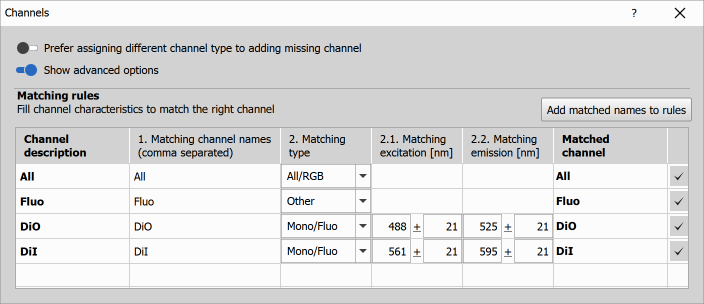
Matching rules can be configured by the user to correctly map channels from different images. Channels are matched in the following order:
- By channel name - matching against a list of comma-separated names.
- By channel type - if the channel type is Mono or Fluo, matching continues by comparing excitation wavelengths, and if still no match is found, by emission wavelengths.
Unmatched channels are assigned to the remaining channels of the same type (wavelengths are not considered in this step). If no such channels are available, a missing channel is added.
It is possible to assign a custom description to each channel (e.g., nuclei, cell, spots).
Parameters
See also: Source Image (group)
Selected Channels
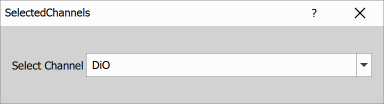
Produces two outputs: a user-selected channel (“Selected”) and a combined output of all remaining channels (“Other”).
See also: Source Image (group)
MxN pixels
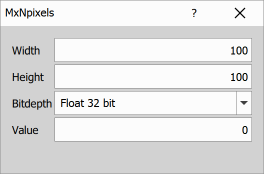
Creates a new single-channel image with the specified dimensions (width, height) and bit depth, filled with the specified value.
Parameters
See also: Source Image (group)
Source Binary
Nodes in this category provide access to binary layers or ROIs of the image currently processed by the GA3 engine.
Binaries
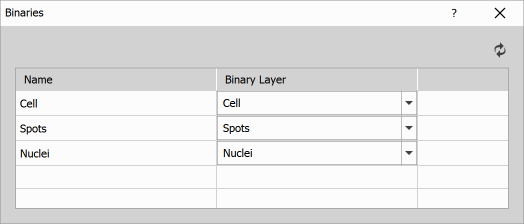
Produces a binary output for each binary layer in the source image.
See also: Source Binary (group)
Selected Binaries
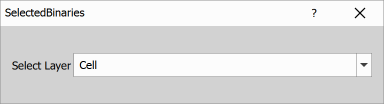
Produces two outputs: a user-selected binary layer (“Selected”) and a combined output of all remaining binary layers (“Other”).
See also: Source Binary (group)
Single Binary
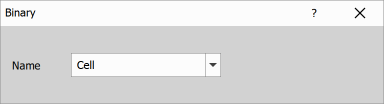
Produces a binary output for a user-selected binary layer.
See also: Source Binary (group)
ROI
Produces a binary output representing the union of all ROIs in the image.
See also: Source Binary (group)
Merge Tables
Concatenate HDF5
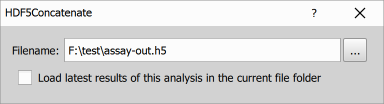
Loads a previously saved GA3 result table from an HDF5 file and appends the current input table to it. Use this node to build one cumulative results table across multiple processed files or repeated runs. Each HDF5 result in the sequence contains all rows accumulated up to that run, not only the rows from one file.
Downstream nodes receive the full cumulative table: previous rows plus the current rows. Therefore statistics, charts, grouping, filtering, and exports after this node operate on all data accumulated so far. Store the node output, typically with Save Tables, so the updated cumulative result is available to the next run.
If no explicit filename is used and “Load latest results of this analysis in the current file folder” is enabled, the node scans readable .h5/.H5 files in the current result folder. It considers only files containing a previous run of the same analysis, then selects the run with the newest recorded HDF5 Creation_time. Files that already point to an existing newer result file are skipped, so the node follows the end of the result chain rather than reopening an older link.
The loaded table is the table from that analysis run whose name matches this node’s output table name; the current input rows are appended to it.
Parameters
Parameters
Nodes in this category produce tables containing a scalar value (number or text), typically used as a dynamic parameter for other nodes.
Input Folder
Produces a table output containing a user-defined folder path.

See also: Parameters (group)
Input Number
Produces a table output containing a user-defined number.
See also: Parameters (group)
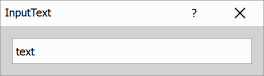
Input Text
Produces a table output containing a user-defined text.
See also: Parameters (group)
Import
Nodes in this category import channels, binary layers, or tables from external sources.
When importing files, the path specified in the Filename dictates where the files are located.
- Absolute Path
- If the path starts with a drive letter (C:\ …), the file will be imported from that absolute path.
- Relative Path
- If the path is relative (., folder, or .\folder), the file will be imported relative to the input file.
Some nodes can set the name field as a format template, where placeholders can be included in the name string to customize the input filenames. These placeholders will be replaced as follows:
For all name templates:
{fn}: the complete filename (e.g. 02AU.nd2).{fnb}: the base part of the filename (e.g. 02AU-enhance.ai.nd2 becomes 02AU-enhance.ai).
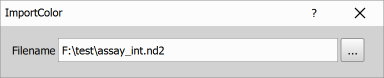
Color Image
Imports the first frame from the image at the specified path.
See also: Import (group)
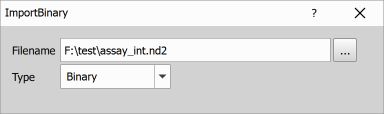
Binary from ND2
Imports the union of binary layers or global ROIs from the specified ND2 file.
See also: Import (group)
Binary from CSV
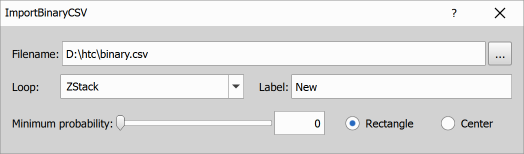
Loads a binary layer composed of rectangular objects representing either the bounding rectangles or the centers of the original binary objects. This node is primarily intended for visualization of objects predicted by AI nodes. Optionally, object probability can be taken into account, and objects can be filtered accordingly.
The source table is expected to be accumulated over the entire dimension, with the first column representing the dimension index. The following columns are required and define the bounding rectangle coordinates in pixels:
- xmin – left edge
- xmax – right edge
- ymin – top edge
- ymax – bottom edge
- label – binary layer name
The prob column is optional and contains object probabilities.
Source table example
| tindex | xmin | ymin | xmax | ymax | label | prob |
|---|---|---|---|---|---|---|
| 0 | 1025 | 360 | 1033 | 373 | sperm | 0.9998 |
| 0 | 366 | 478 | 372 | 491 | sperm | 0.9998 |
| 1 | 1186 | 351 | 1198 | 358 | sperm | 0.9997 |
| 1 | 250 | 9 | 263 | 18 | sperm | 0.9997 |
| 2 | 66 | 265 | 77 | 272 | sperm | 0.9995 |
Filename Location of the source table.
Loop Dimension represented by the table.
Label Label to be searched for in the source table data.
Minimum probability Filter applied to the prob column, if present.
Rectangle / Center Selects which binary layer type to load: bounding rectangles or centers of the original binary objects.
Parameters
See also: Import (group)
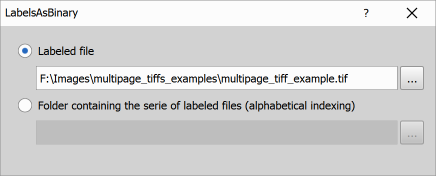
Labels as Binary
Imports binary data from label images stored either as:
- a multi-page or OME-TIFF file, or
- a sequence of single-page image files
When loading from an image sequence, files are processed in alphabetical order.
All imported files are expected to have the same shape. The resulting binary output is equivalent to the output of the Labels to Binary node used in Segmentation Special Detection.
Output metadata are taken from the input color image.
See also: Import (group)
Table from CSV
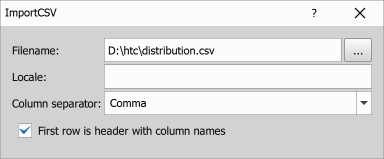
Imports a table from a comma-separated values file (.csv). A data type (number or text) is determined for each column.
Filename Location of the source table.
Locale If left empty, the system locale is used. Otherwise, the specified two-letter ISO locale code is used.
For example, in Czech or French CSV files, the decimal separator is a comma, while in a US locale the decimal separator is a dot. In such cases, numbers may not be recognized correctly and may be imported as text. This can be resolved by specifying cs or fr in the Locale parameter.
Column separator Character used to separate columns: comma
,(default), tab (TAB), or semicolon;.First row is header with column names Enable this option if the first row contains column names rather than actual data.
If a header is present, it can also define the column type and a specific column meaning. The following header syntax is recognized:
Name or Keyword [Unit] : Type
Name Any name except a colon.
Keyword
Special column identifiers such as _Entity, _ObjId, or _ObjId3d.
Unit Any unit. This item is optional.
Type
int for integer values; number, real, or double for real numbers; and string or text for text values. This item is optional.
Example
| _ObjId | Size [m] : number | Description : text |
|---|---|---|
| 1 | 1258 | reference object |
Parameters
See also: Import (group)
Table from HDF5
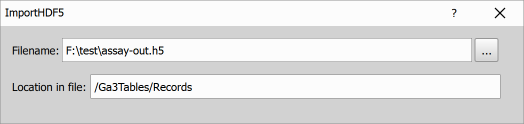
Loads a table from an HDF5 file at the specified location within the file.
The table can be one of the following:
- an ordinary 2D dataset (rows × columns) containing atomic data types or variable-length strings,
- a table previously exported using Table to HDF5 (a group of column datasets).
See also: Import (group)
Export
When exporting files, the path specified in the Folder (or filename in the case of CSV) dictates where the files will be saved.
- Absolute Path
- If the path starts with a drive letter (C:\ …), the file will be exported to that absolute path.
- Relative Path
- If the path is relative (., folder, or .\folder), the file will be exported relative to the output file.
Some nodes can set the name field as a format template, where placeholders can be included in the name string to customize the output filenames. These placeholders will be replaced as follows:
For all name templates:
{fn}: the complete filename (e.g. 02AU.nd2).{fnb}: tbe base part of the filename (e.g. 02AU-enhance.ai.nd2 becomes 02AU-enhance.ai).
For all name templates producing multiple files:
{n:xx}: sequential number with xx indicating the number of digits.{l:xx}or{li:xx}: loop counter where l is the loop type (i stands for zero-based indexes) and xx is the number of digits.{ln}: loop name where l is the loop type (only available forp,w,m, ands).{lb}: loop barcode where l is the loop type (only available forpands).
Example:
{fnb}_M{m:2}_T{t:2}will generate “02AU_M01_T01”, “02AU_M01_T02”, … and append the appropriate filename extension.
Different loop types and their corresponding identifiers are used in placeholders:
p: Platew: Wellm: XY Multi-Pointt: Time-lapsez: Z-Stackc: Counts: Slider: Regionx: Temporaryh: Channel
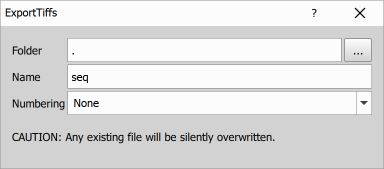
Some nodes provide a Numbering parameter that controls how output files are generated.
None A single file is created and overwritten with each new frame. This is useful for single-frame outputs or reduced data from ND Processing nodes.
Append sequential number A separate file is created for each frame by appending a sequential number to the filename (e.g.
C:\seq00000.ext).Append loop fields A separate file is created for each frame by appending loop identifiers to the filename (e.g.
C:\seq00000z000.ext).Use name as format template The filename is generated using the format template defined in the name field (see placeholders above).
Color to Single TIFs
Exports TIFF images to the specified folder with the specified name.
See also: Export (group)
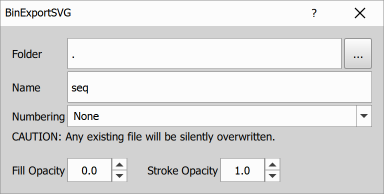
Binary to SVGs
Exports objects from the input binary layer as SVG images with configurable fill and stroke opacity.
Parameters
See also: Export (group)
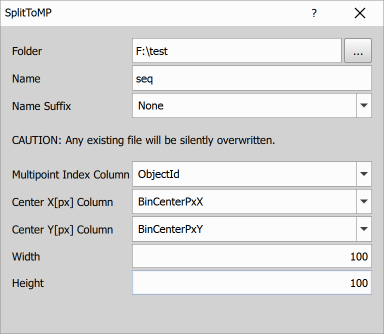
Split to Multipoint
Creates a new ND2 file from regions cropped from the original image and represents them as a multipoint loop. Frames are ordered according to the selected column from the input table. Other loops, such as Timelapse and Z-Stack, are preserved.
Folder Destination folder for the created file.
Name Name of the created file.
Name Suffix Suffix appended to created files when saving to separate files (if loops other than Timelapse and Z-Stack are present).
Multipoint Index Column Column in the input table that determines the order of cropped regions in the resulting multipoint loop.
Center X [px] Column Column in the input table that determines the X coordinate of the cropped region center, in pixels.
Center Y [px] Column Column in the input table that determines the Y coordinate of the cropped region center, in pixels.
Width Width of the cropped region.
Height Height of the cropped region.
Parameters
See also: Export (group)
Table to CSV
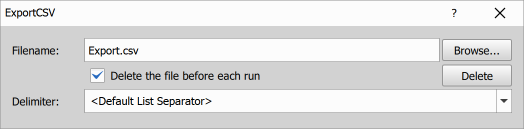
Exports the table to a CSV (Comma-Separated Values) file.
Filename Path to the CSV file.
Delete the file before each run Clears the file contents before each GA3 run.
Delete Clears the file contents.
Delimiter Field separator used in the CSV file.
See also: Export (group)
Table to HDF5
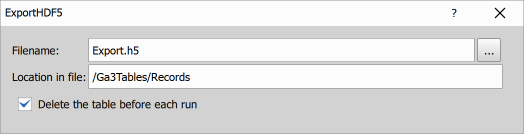
Stores a table in an HDF5 file.
Filename Path to the HDF5 file.
Location in File Group or dataset location within the file, for example
/Ga3Tables/Records.Delete the table before each run Specifies whether the table is cleared before data are written or appended.
See also: Export (group)
Result to Image
Exports Results (Graphs, Wellplates and Tables from) into a .png image.
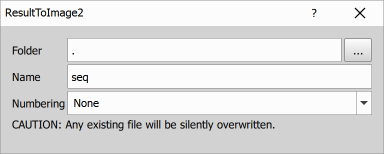
Parameters
See also: Export (group)
Wizard
Nodes in this category control the visibility of outputs in the wizard.
Visible Channels
Controls the visibility and auto-contrast of channel outputs in the wizard page.
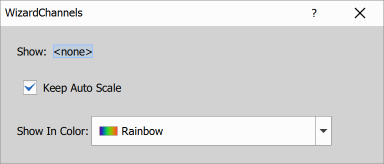
See also: Wizard (group)
Visible Binaries
Controls the visibility and opacity of binary outputs in the wizard page.
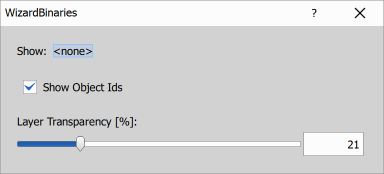
See also: Wizard (group)
Visible Tables
Controls the visibility of table outputs in the wizard page.
See also: Wizard (group)
Save To Document
Nodes in this category store connected inputs (channels, binary layers, tables) in the document during the final GA3 run. Connected inputs are synchronized based on the ’to be stored’ flag.
Save Channels
Saves all connected channels to the result document.
The output document file format can be configured using the following options:
- Keep input file format
- Save as ND2 file
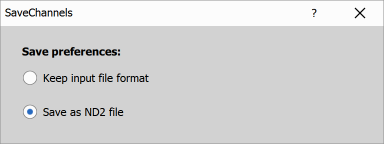
Parameters
See also: Save To Document (group)
Save Binaries
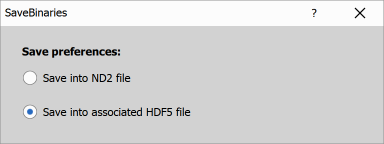
Saves all connected binary layers to the result document.
The storage format of binary layers can be configured using the following options:
- Save into ND2 file
- Save into associated HDF5 file
Parameters
See also: Save To Document (group)
Save Tables
Saves all connected tables to the associated HDF5 file.
See also: Save To Document (group)
NSPARC
Nodes in this category are used to work with images containing NSPARC raw data.
Array Components
Exposes NSPARC array components (25 per channel) as individual outputs. These outputs cannot be stored or exported and are intended for preview only.
See also: NSPARC (group)
Reassign
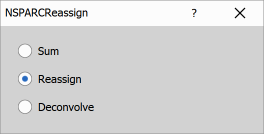
Calls the NSPARC reassign function and collapses the (modified) NSPARC array components back into mono channels. The output can be stored.
See also: NSPARC (group)
Deep Sim
Nodes in this category perform Deep Sim image reconstruction on images containing raw Deep Sim data.
Reconstruction
Creates a Deep Sim reconstructed image.
See also: Deep Sim (group)
ZStack Reconstruction
Creates a Deep Sim reconstructed z-stack.
See also: Deep Sim (group)