Binary processing
Nodes that process a binary input image into output image.
Cell Processing
Make Cell
All nuclei are cropped to ensure they overlap with cells. Then, for each cell, the largest overlapping nucleus is selected and paired with it. Any unpaired nuclei and cells without a corresponding nucleus are removed. Finally, all remaining cells and nuclei are relabeled so that each cell–nucleus pair shares the same unique Object Id.

Parameters
Basic
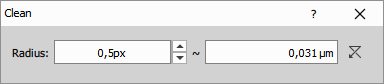
Clean
Removes small objects using a process known as geodesic opening. The transformation begins with erosion, which eliminates small objects. The remaining structures are then reconstructed to their original size and shape. This method effectively removes small artifacts while preserving the integrity of larger objects.
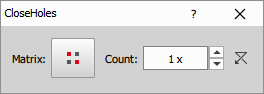
Close Holes
Removes small holes while preserving object boundaries. This operation fills those holes that would be removed by an erosion applied to the complement of the image. Using reconstruction avoids shrinking or rounding the true object boundaries.
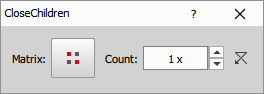
Close inside Ref
Performs morphological closing restricted by a Parent (Ref) mask. The closing is applied independently within each parent object, so components can connect only within the same parent and never across parent boundaries. Use this to bridge small gaps or join fragmented objects (e.g., multiple nuclei within a single cell); the structuring element size controls the maximum gap that will be closed.
Fill Holes
Fills all holes inside objects. Holes connected to the image border are preserved.
Fill If Empty
If the binary image contains no objects, the node fills it completely. If any object is present, the image is unchanged.
Invert
Swaps objects and background by inverting the binary image.
Remove Border
Clears all object pixels on the outermost image by setting them to 0. Interior pixels are unchanged.
Separate Objects
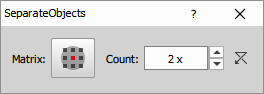
Splits objects into smaller ones. The Count and Matrix parameters control aggressiveness: lower Count values and a smaller Matrix produce more separations.
Separate Bright
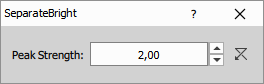
Splits connected objects by cutting along low-intensity boundaries between bright regions using the intensity image. The Peak strength parameter sets the minimum peak (object) prominence - higher values keep only stronger intensity peaks resulting in fewer separations.
Separate Dark
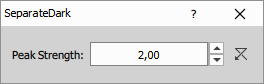
Splits connected objects by cutting along high-intensity boundaries between dark regions using the intensity image. The Peak strength parameter sets the minimum valley (object) prominence - higher values keep only deeper intensity valleys resulting in fewer separations.
Smooth
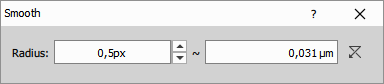
Smooths object contours in the binary image using weak morphology (convolution followed by thresholding). It removes small objects and trims narrow protrusions, while filling small holes and narrow indentations. It may merge or separate objects.
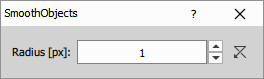
Smooth Objects
Smooths rough contours in the current binary image while keeping objects separate. Strong smoothing may remove small or narrow objects entirely.
Morphology
In image processing, a structuring element (also called a kernel or filter) is a small rectangular or square grid that acts as a template sliding over the image. At each position, it interacts with the neighboring pixels to compute a new value for the corresponding pixel in the output image. The size of the matrix (kernel size) determines how large the neighborhood is for the operation. The same structuring element can be applied multiple times. Running the operation repeatedly effectively increases the size of the morphological effect without changing the matrix itself.
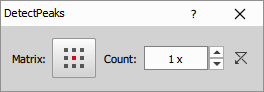
- Matrix: click the button to change the structuring element used for this operation.
- Count: number of iterations - effectively the size of the operation.
Different square matrix shapes available:


Some functions support a “circular” matrix where different distances from the central pixel are compensated.


Circular morphology
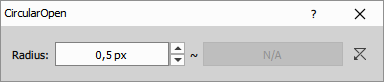
- Radius: set the radius of circular structuring element in pixels or micrometers.
Morphology matrices
Morphology circular matrices
Linear morphology matrices


3D morphology matrices


Open
Erode to remove small objects and thin branches, then dilate to restore shape
See also: Morphology (group)
Close
Dilate to connect nearby objects and seal small gaps, then erode to restore shape
See also: Morphology (group)
Erode
Make objects smaller
See also: Morphology (group)
Dilate
Make objects larger
See also: Morphology (group)
Circular Morphology
Circular Open
Erode with a circular kernel to remove small objects, then dilate to restore shape
See also: Circular Morphology (group)
Circular Close
Dilate with a circular kernel to connect nearby objects, then erode to restore shape
See also: Circular Morphology (group)
Circular Erode
Erode with a circular kernel to shrink objects
See also: Circular Morphology (group)
Circular Dilate
Dilate with a circular kernel to grow objects
See also: Circular Morphology (group)
Linear Morphology
See Linear morphology (Image preprocessing)
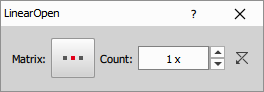
- Matrix: Click the button to change the structuring element used for this operation.
- Count: Number of iterations: effectively the size of the operation.
Linear Open, Linear Open Z
Erode along a line to remove thin parts, then dilate to restore shape
See also: Linear Morphology (group)
Linear Close, Linear Close Z
Dilate along a line to bridge small gaps, then erode to restore shape
See also: Linear Morphology (group)
Linear Erode, Linear Erode Z
Erode along a line to shrink objects
See also: Linear Morphology (group)
Linear Dilate, Linear Dilate Z
Dilate along a line to grow objects
See also: Linear Morphology (group)
Detect
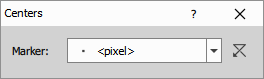
Centers
For each object, keeps a single pixel at the object’s uniform centroid (all pixels have same weight) and clears the rest.
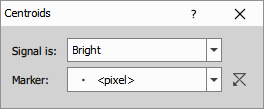
Centroids
For each object, keeps a single pixel at the intensity-weighted centroid, using the intensity image as weights and clears the rest.
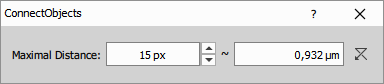
Connect Objects
Connects objects which are closer to each other than the specified distance by a thin line.
Contour
Reduces each object to a 1-pixel-wide contour by keeping only border pixels and removing interiors. The result is a single-pixel line tracing each object’s outline.
Convex Hull
Replaces each connected object with its convex hull. Non-convex shaped objects expand to convex boundaries; already-convex shaped objects are unchanged. Hulls are computed per object, but overlapping hulls may merge into one object.
Distance Function
Computes an inside-object euclidean distance map. Each object pixel is set to its distance to the nearest background pixel. Pixels outside objects are 0. The output is a single-channel floating-point image whose intensity encodes distance. If the image is calibrated, pixel distance is converted to µm.
Geodesic Centers
Replaces each connected object with its geodesic center. A geodesic center is a point within a shape that minimizes the maximum geodesic distance to any other point in that shape. Geodesic distance is the length of the shortest path between two points that is restricted to staying within the boundaries of the shape, as opposed to a straight line. For convex shaped objects, the center and the geodesic center are identical.
Granulometry
Creates a granulometry channel where each object pixel stores the side length of the largest axis-aligned square fully contained in the object that covers that pixel. Pixels covered by larger fitting squares receive larger values. Background pixels are 0. The output is a single-channel floating-point image whose intensity encodes size. If the image is calibrated, pixel values are converted to µm.
Homotopic Marking
Performs homotopic marking (sequential homotopic thinning) on the binary image, reducing each object to a topologically equivalent marker set while preserving connectivity. A solid object with no holes collapses to a single-pixel marker, each hole is reduced to a closed contour.
Inscribed Circles
Replaces each object by its inscribed circle. Inscribed circle is the largest circle that can be contained in the object.
Medial Axis
Replaces each object with its medial axis. Medial axis is a centerline made of points lying midway between the objects contours. The resulting skeleton preserves topology.
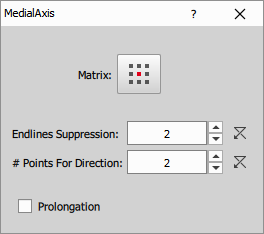
- Matrix: specifies a structuring element for finding the distance to the boundary.
- Endlines suppression: controls pruning of short terminal branches. 2 = keep tips; 3–4 = progressively cut off more small branches.
- # Points for direction: determines how many end points are used to calculate the direction of the medial axis prolongation.
- Prolongation: determines whether the medial axis prolongation is applied or not
Parameters
Pruning
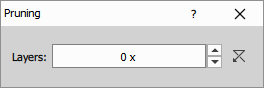
Sequentially removes end-point pixels from a skeleton to prune small branches and spurs. If Layers = 0, pruning repeats until no endpoints remain. Otherwise it runs for the specified number of iterations. Closed loops (cycles) are preserved and remain unchanged.
Ultimate Erosion
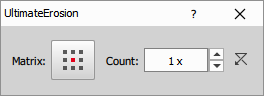
Sequentially erodes the binary image while preventing any connected object from being completely removed. At each iteration, pixels whose removal would make an object vanish are preserved, so objects are thinned but not deleted. Matrix sets the size and shape of one erosion step. Count sets how many times that step is applied in each iteration.
Growing
Grow by Size
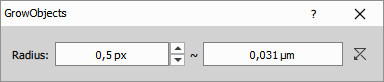
Grows each object by the specified radius. If the grown objects touch, the objects stay separate (no merging).
Grow to Fill Ratio
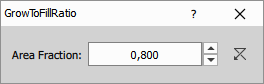
Uniformly grows all objects until they cover the specified Area Fraction of the image. Growth proceeds in steps and stops when the target is reached or no further growth is possible. If the grown objects touch, the objects stay separate (no merging).
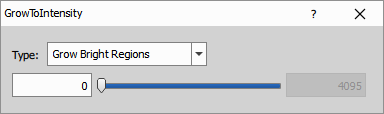
Grow to Intensity
Grows each object into neighboring pixels that meet the specified intensity limit. If the grown objects touch, the objects stay separate (no merging).
Parameters
Fast Exoskeleton
Creates zones of influence for the objects by drawing 4-connectivity borders and using the fast “pipe-of-pixels” algorithm. Each border pixel is nearly equidistant to two neighboring objects. For more accurate results, see Zones of influence.
Make Circle & Ring
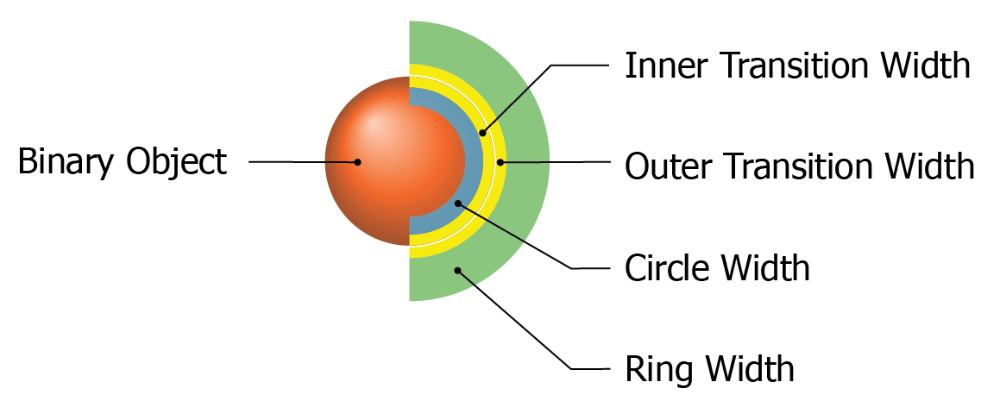
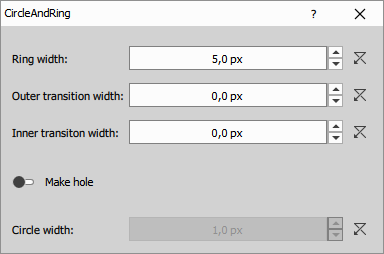
For each object in the binary image, creates an interior circle and a surrounding ring. Each circle–ring pair shares the same object ID, and the counts of circles and rings always match. If either feature would disappear for an object, both are removed to keep IDs aligned. The circle can optionally include an inner hole (hole width measured inward from the circle border).
Parameters
Thickening
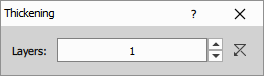
Dilates each object with a 3×3 kernel, growing it by one pixel per iteration. If the grown objects touch, the objects stay separate (no merging). This is a homotopic transformation.
Watershed
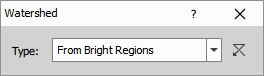
Performs the watershed (flooding) algorithm starting from the binary objects, using the intensity image to guide the flooding.
Zones of Influence
Creates zones of influence for the objects by drawing 4-connectivity borders. Each border pixel is equidistant to two neighboring objects.
Skeleton
Skeletonize
Reduces each object to a 1-pixel-wide centerline (skeleton) by iterative thinning that keeps components connected (no splitting). The resulting skeleton is useful for measuring lengths and branching.
Detect Branching
Creates single-pixel markers from a skeletonized binary image by marking each intersection point of the branches.
Detect Endings
Creates single-pixel markers from a skeletonized binary image by marking each end point of the skeleton.
Cut Branches
Removes short terminal branches from a skeletonized binary image. Branches that end at an endpoint and are shorter than the specified length are removed, longer branches are kept.

Connect Free Endings
Connects nearby skeleton endpoints to form closed loops (cycles) and remove free endings. Paths are computed on the input channel treated as an inverted cost map (higher values = lower penalty), so lower-cost routes are preferred. After connecting, remaining free endings are removed, leaving only cycles. Some existing branches may be slightly adjusted.
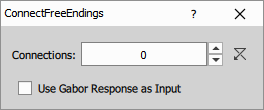
- Connections: cost tolerance for routing. Higher values allow costlier paths (longer and over lower intensity), yielding more connections
- Use Gabor response as input: uses the positive real response of the Gabor edge filter, computed in all directions and with 6× amplitude. A simple autocontrast operation is applied to the input and to the filtered output.
Vanish Small Objects
Removes free endings and small cycles on a skeletonized image. Cycles with equivalent diameter below threshold are removed. Intended to clean mis-detections (tiny loops) while keeping meaningful structures.
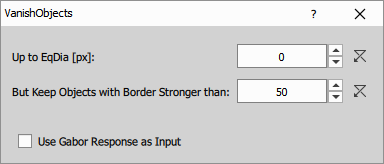
- Up to EqDia: delete cycles with equivalent diameter smaller than this value.
- But Keep Objects with Border Stronger than: set a relative edge-strength threshold measured on the input channel. Cycles whose mean intensity on border is higher than this are kept even if their equivalent diameter is below the threshold. It is a relative value in range 1-100.
- Use Gabor Response as Input: uses the positive real response of the Gabor edge filter, computed in all directions and with 6× amplitude. A simple autocontrast operation is applied to the input and to the filtered output.
Parameters
Remove Short Filaments
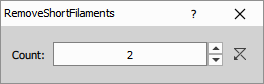
Shorten terminal branches by the given number of pixels.
Connectivity
In binary image processing, each pixel can take one of two values — typically 1 for object pixels and 0 for background pixels. The way pixels are considered connected defines how objects are recognized and processed.
Two types of connectivity are commonly used on a square pixel grid:
4-connectivity: Each pixel is connected to its four direct neighbors — up, down, left, and right. Diagonal pixels are not considered connected.
8-connectivity: Each pixel is connected to all eight surrounding pixels — including those touching at corners. This allows diagonally adjacent pixels to belong to the same object.
The choice of connectivity affects how objects are detected and separated. For instance, two diagonally adjacent pixels represent two separate objects under 4-connectivity, but a single object under 8-connectivity.

NIS-Express uses the 8-connectivity model, meaning all pixels that touch, even at the corners, are treated as part of the same object.
Make 4-Connective
Add pixels to thin structures to enforce 4-connectivity
See also: Connectivity (group)
Make 8-Connective
Remove pixels from thin structures to enforce 8-connectivity
See also: Connectivity (group)
Filter objects
Filter Objects
Filter objects by features; keep those meeting the criteria.
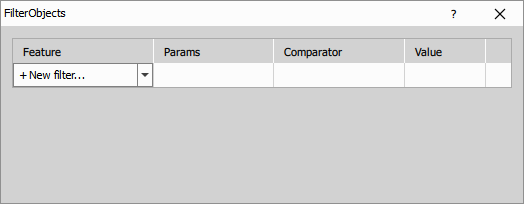
See also: Features
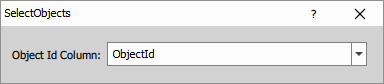
Select Objects
Keep objects whose ids appear in the connected table.
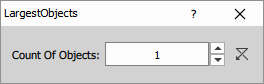
Largest Objects, Largest Objects 3D
Keep only the specified number of largest objects.
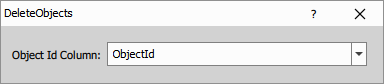
Delete Objects
Remove objects whose ids appear in the connected table.
Remove objects
Touching Borders
Remove objects that touch the image borders
Touching Frame
Remove objects that touch the given frame.
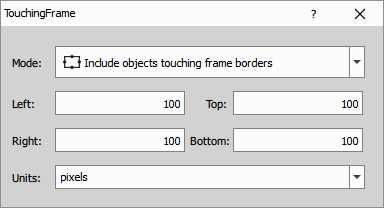
Parameters
Insert objects
Circle
Insert a circle using center and radius.
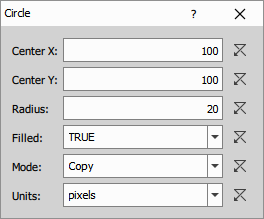
Parameters
Ellipse
Insert an ellipse using center, size, and angle.
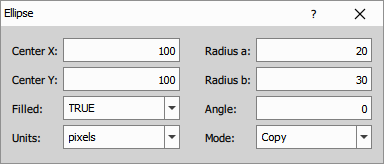
Parameters
Frame
Insert a rectangle defined by margins from the image border.
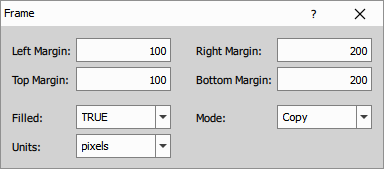
Parameters
Line
Insert a line using start and end points.
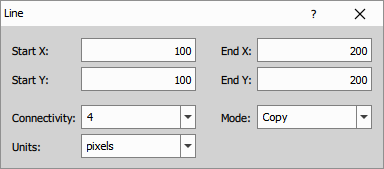
Parameters
Line Between Objects
Insert a line connecting the two largest objects.
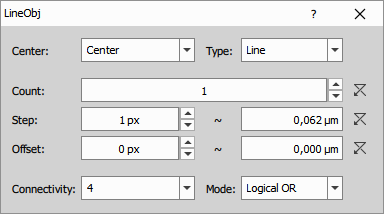
Parameters
Parallel Lines
Insert parallel lines at the given angle and spacing.
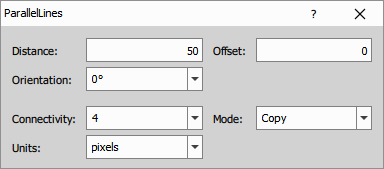
Parameters
Rectangle
Insert a rectangle using position and size.
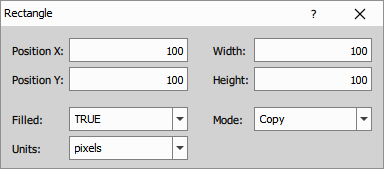
Parameters
Markers
Insert markers in a grid with the given spacing.
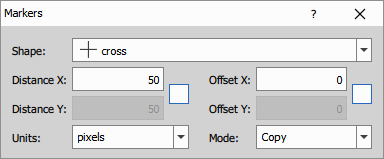
Parameters
Marker
Insert a single point marker at the given position.
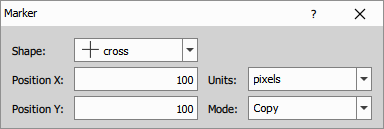
Parameters
Multiple Circles
Insert circles of varying sizes from the connected table.
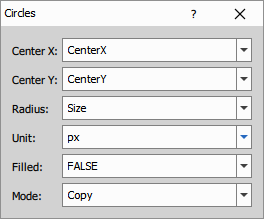
Parameters
Multiple Fixed Circles
Insert circles with a fixed size from the connected table.
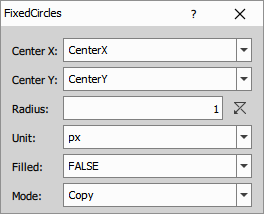
Parameters
Multiple Rectangles
Insert rectangles from the connected table.
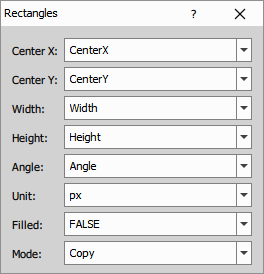
Parameters
Multiple Lines
Insert lines from the connected table.
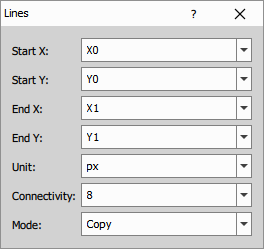
Parameters
Colors & Numbers
Color by Id
Converts an 8-bit binary image to a 32-bit labeled image, assigning a unique object ID to each object. If the input is already 32-bit labeled, it is left unchanged. Sets the binary layer coloring in image view to Color by ID.
Color by Value
Converts an 8-bit binary image to a 32-bit labeled image, assigning a unique object ID to each object. If the input is already 32-bit labeled, it is left unchanged. Sets the binary layer coloring in image view to Color by value and maps each object ID to color defined by table.
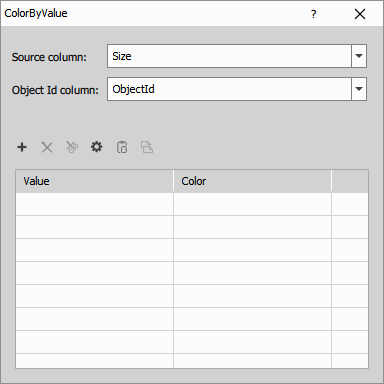
Parameters
Grid-Based Renumber
Renumbers detected objects arranged on a rectangular grid. The node auto-detects rows and columns, then assigns new indices so upper rows get smaller numbers than lower rows and, within each row, indices run left-to-right. The preview shows the chosen ordering. For best results, objects should lie on an axis-aligned, non-rotated rectangular grid.
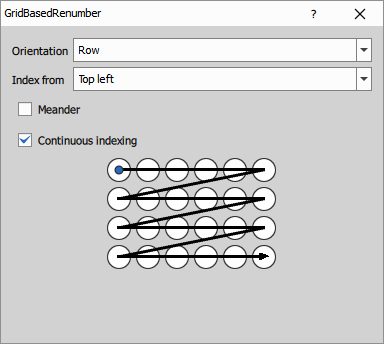
- Continuous indexing: when enabled, objects are numbered densely from 1 to N (missing grid spots are skipped). When disabled, numbering follows grid positions and leaves gaps where positions are missing.
Parameters
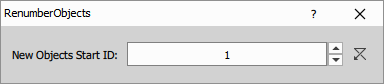
Renumber Objects
Renumbers objects to keep object IDs consecutive. If Reference input is empty, all remaining objects are relabeled to be continuous starting from the specified Start ID. If it contains objects, any current object that overlaps a reference object inherits that reference ID, and all remaining objects receive new sequential IDs starting from Start ID, skipping IDs already taken by overlaps.
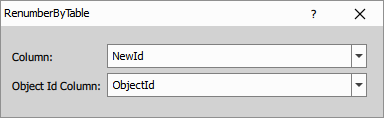
Renumber by Table
Renumber objects using a table.
Separate Ids
Separates connected objects in colorized (labeled) binary images and makes them valid for further processing. Such binary images are not created by GA3’s default processing, but can appear as outputs of JavaScript or Python nodes — for example, some Python libraries produce labeled binary images that don’t separate disconnected parts.
TMA Renumber
Renumbers detected TMA (tissue microarray) cores arranged on a grid. The node auto-detects rows and columns, then assigns new indices so upper rows get smaller numbers than lower rows and, within each row, indices run left-to-right. The preview scheme shows the chosen ordering. For best results, cores should lie on an axis-aligned, non-rotated square grid.
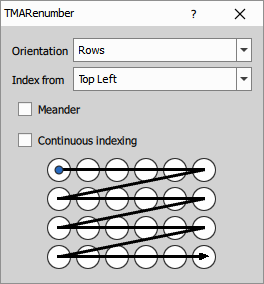
- Continuous indexing: when enabled, cores are numbered densely from 1 to N (missing grid spots are skipped). When disabled, numbering follows grid positions and leaves gaps where positions are missing.
Transformations
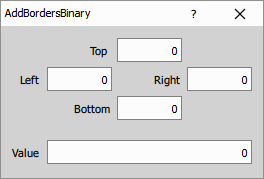
Add Borders
Extend binary borders.
Parameters
Crop
Crop the binary to the given rectangle.
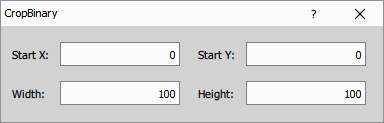
Parameters
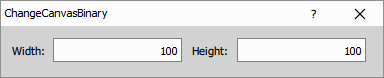
Change Canvas
Change the canvas dimensions, centering the original data without resizing.
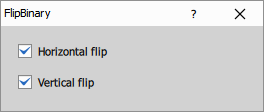
Flip
Flip the binary horizontally or vertically.
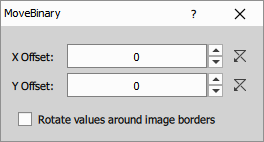
Move
Move the binary horizontally and vertically.
Resize to Ref
Resize the binary to match the size of the reference
Rotate
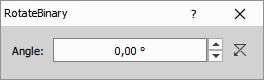
Rotate the binary around its center.
Circular Morphology 3D
Circular Clean
Remove objects that cannot fit a sphere of the chosen radius
Circular Close Holes
Fill holes that cannot fit a sphere of the chosen radius
Insert objects 3D
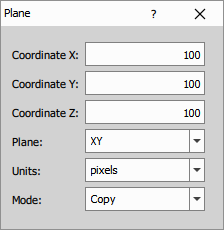
Plane
Insert an XY, XZ, or YZ plane at a specified position.
Parameters
Connect slices 3D
Connect
Connects 2D binary slices from consecutive frames into a 3D binary image. Usually not needed — most 3D binary nodes do this automatically. Use it when your final result is 2D but you want a 3D interpretation. This node does not change the underlying binary data.
Connect Cells
Connects 2D object slices from consecutive frames into 3D objects by linking object slices that have the largest overlap across frames. Finalizes by keeping all 3D objects separate.
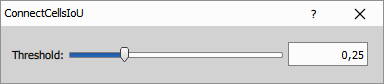
Connect Cells IoU
Connects 2D object slices into 3D objects using Intersection-over-Union (IoU) between consecutive frames. For each object slice, the object slice in the next frame with the highest IoU above threshold is linked. Intersection-over-Union is the ratio of the overlap area to the union area of two objects projected to the same plane. Finalizes by keeping all 3D objects separate.