Image page
The Image page is where the images and the results of GA3 can be viewed, compared and inspected. Prepared recipes can be comfortably run from this page.
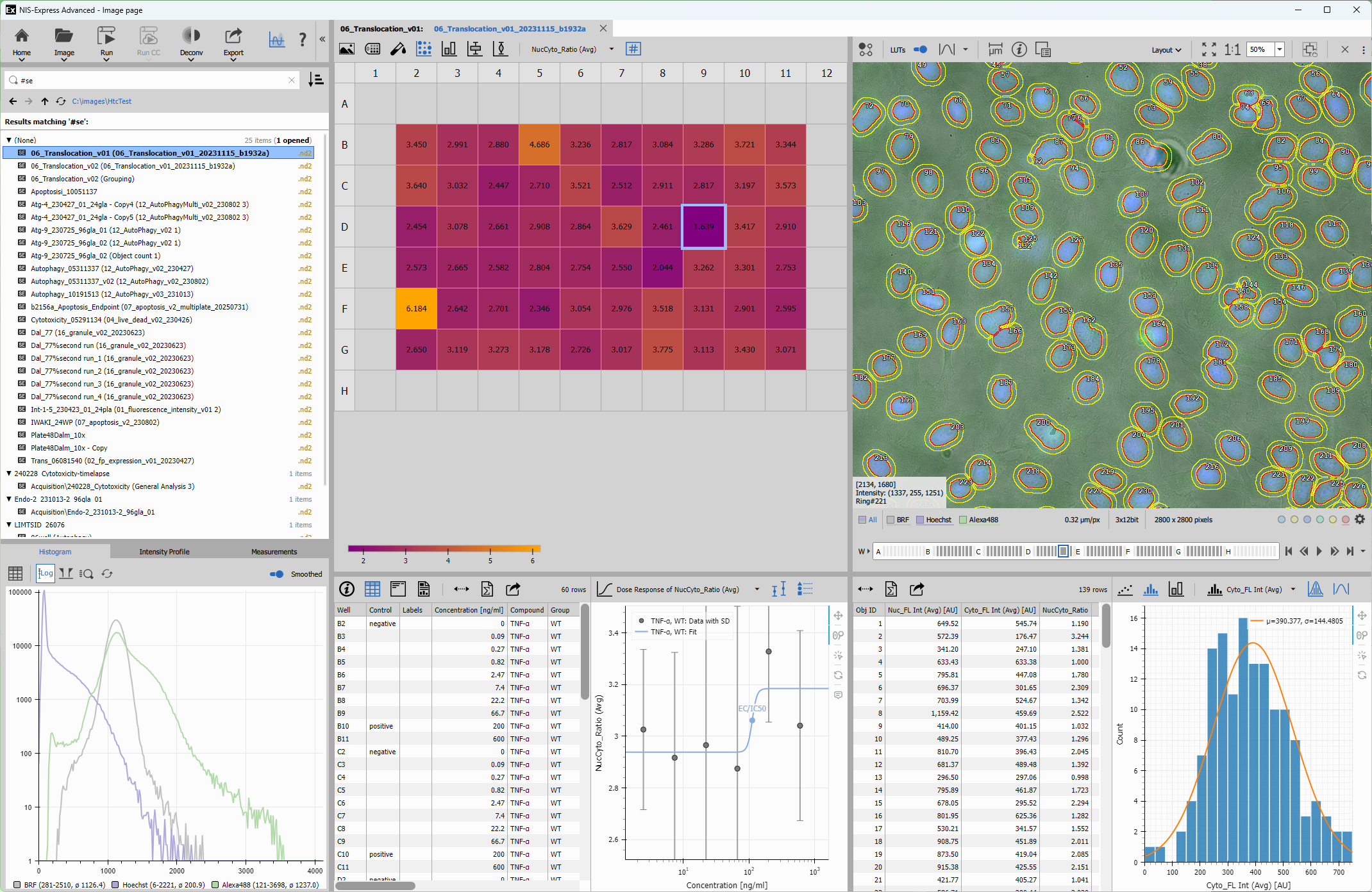
The page is composed of two main parts:
- the List of images on the left side and
- the Main window
Main toolbar

Returns back to the home screen. To go to specific page use the dropdown:
- Recipe page Alt+R - opens the current image in the Recipe page.
- AI page Alt+A - opens the current image in the AI page.
Image button shows Open image dialog. The bottom down arrow contains more options:
- Recent images - lists recently opened images for direct opening.
- Recent folders - lists recently visited folders for opening a file from that particular folder.
- Paste image - creates a new image from the clipboard (it is disabled when the clipboard doesn’t contain a bitmap or image).
- Import file… - opens single-file conversion. See Import single image.
- Convert images… - opens batch conversion for individual files. See Import individual files.
- Import image sequence… - opens sequence conversion. See Import image sequence.
Run button contains a list of recipes that can be run on currently opened image.
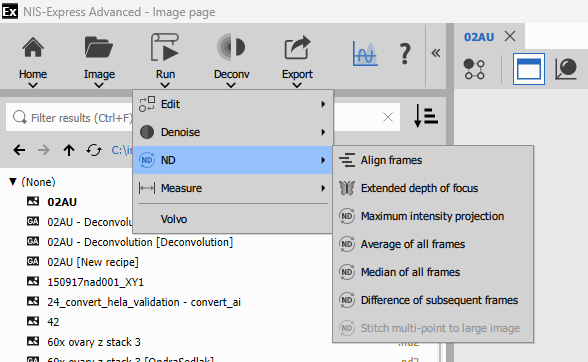
Contains a list of recipes of:
- built-in workflows that are selected to be shown here in the Settings,
- recipes marked as favorites in the list of recipes on the Recipe page and
- most recently run recipes (the number can be set in the Settings).
When Cluster Computing is configured, Run CC works the same as Run, but on the cluster.
The deconvolution package offers a suite of powerful tools aimed at restoration of clear images from acquired data degraded by distortions > that take place in an optical microscope.
– see the Deconvolution workflow
- Deconvolution - shows the Deconvolution node dialog.
- Clarify.ai - shows the Clarify.ai node dialog.
- Restore.ai - shows the Restore.ai node dialog.
Export function can take snapshots (RGB screenshots), presentations (snapshots of image and results) and export raw data into TIFFs and OME-TIFFs,
Snapshot to clipboard takes a snapshot of the image as seen.
Save snapshot… saves a snapshot of the image as seen.
Save full-res snapshot… saves a snapshot of the image as seen in full image resolution.
Save movie… saves a snapshot of the image as seen in full image resolution into a movie.
Presentation to clipboard takes a snapshot of the whole document area into the clipboard.
Save presentation… saves a snapshot of the whole document area.
Save presentation movie… saves a snapshot of the whole document area into a movie.
Save image as TIFF… saves the current frame into a TIFF.
Dataset as OME-TIFF… saves the ND image into OME-TIFF.
Dataset as series of TIFFs… saves the ND image into a series of single plane TIFFs.
The buttons at the right toggle the:
- Interactive tools panel and
- link to this help page
- collapse left pane
List of images
The tree view shows the list of images with their analysis results in the selected folder.
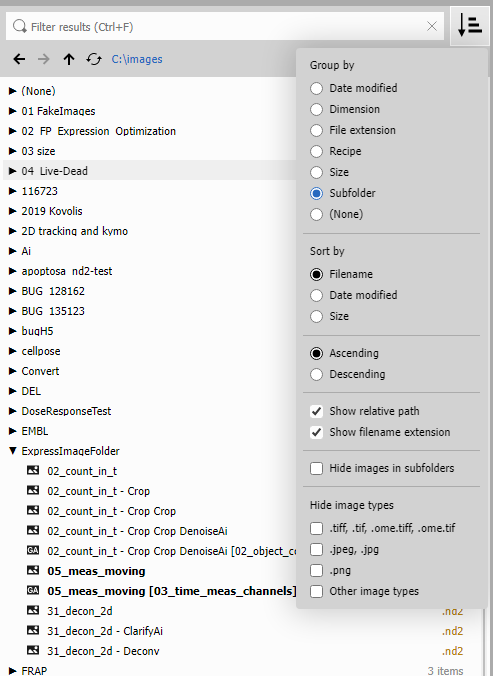
Each item shows following information:
Image - Processing Recipe [Results Recipe] where:
- Image is the original image file,
- Processing Recipe reflects the name of the processing applied to the original image (concatenating where necessary)
- Results Recipe reflects the recipe name recorded in the accompanying H5 results file
Currently open images are shown in bold, here:
- 05_meas_moving and
- 05_meas_moving [03_time_meas_channels]
Navigation toolbar
There is a navigation toolbar that helps with changing the selected folder. It is similar to the system File Explorer.

Arrows and can be used to go over the history of visited folders (holding the back button reveals the list of recent folders). The arrow navigates to the parent folder and re-reads the contents of the folder.
The selected folder is displayed in an accent color. Clicking on it opens folder selection dialog.
Viewing
List viewing options are accessible in the drop-down menu .
- Grouping
- Images can be grouped by:
- date when the file was last modified,
- ND dimensions (Time-lapse, Z-stack, …),
- file extension/type,
- recipe name,
- file size or
- subfolder one level below the selected folder.
- Sorting
- The images can be shown in ascending or descending order based on their:
- name,
- date or
- size.
- Additional options
- include:
- show/hide relative path for images deeper in the folder hierarchy,
- show/hide filename extension on the right,
- hiding the files not immediately in the selected folder or
- hiding specific file extensions
Actions on images
Following actions are available on the selected image:
- Open Enter: opens the selected image
- Copy image path: copies the full-path and filename of the selected image to clipboard
- Delete… Del: deletes the selected image
- Refresh F5: refreshes the list of images
- Open in File Explorer… Ctrl+E: opens the image folder in the File Explorer
When grouped by folders Drag and Drop is available to move images between folders.
Filtering
To show only a subset of images start typing into the search field and the view will update accordingly.
Rules & examples
- Basic search
- Simply type words to find images whose filename contains them.
object countfinds image with both object and count in the filename.
- Exact phrases
- Use
"quotes “…” to search for an exact phrase.
"object count"finds image with both object count in the filename.
- Excluding words
- Add a
-minus sign before a word or phrase to exclude it.
object -countfinds image with object but not count.
- Tags
- Use
#tagto search for images with that tag or shortcut.
| tag | meaning |
|---|---|
#ro | read-only |
#image | image only |
#ga3 | with GA3 results |
#se | with Smart Experiment results |
#h5 | with results in HDF5 |
#nd2 | file type is ND2 |
#tif | file type is TIFF |
#ome | file type is OME-TIFF |
#png | file type is PNG |
#jpg | file type is JPG |
Modify-time related shortcuts:
#today, #yesterday, #thisweek, #lastweek, #thismonth, #lastmonth, #thisyear, #lastyear
- Type
- Search by file type name.
type:jpeg
suffix:jpeg
ext:jpeg
finds all images with the extension.
- Recipe
- Search by recipe.
recipe:time_meas
r:time_meas
analysis:time_meas
assay:time_meas
a:time_meas
finds all images with the recipe run on it. Nothing or “None” finds images with no recipe run on it.
- Dimension
- Search by ND dimension (
t,z,m).
dimension:t
dim:t
finds all images with the dimension. Nothing or “None” finds single-frame images.
- Dates
- Search by modify date
mtimefields with comparison operators.
Format:
YYYY-MM-DD(full date)MM-DD(month and day only)
Operators: <, <=, =, >=, >, !=
mtime:<2024-05-10finds images modified before May 10, 2024.
- Sizes
- Search by size with comparison operators.
Format:
#[.##] U(full date) where U is on of: k, M, G, T, P
Operators: <, <=, =, >=, >, !=
size:<10g
sz:
finds images with size smaller that 10 Gigabytes.
- Sub-folders
- Search by sub-folder name.
sub:examples
s:examples
finds all images in a sub-folder that contains examples in the name.
Nothing or “None” finds images in the root folder.
- Combining searches
- Use
ORfor alternatives.
object OR tracking- Grouping
- Use parentheses
(…)to group terms:
(object OR tracking) 3Dfinds images containing 3D and either object or tracking.
- Wildcards
- Use templates with wildcards
- * matches any number of characters.
- ? matches exactly one character.
image*matches image, image2024, etc.
- Tip
- You can mix and match these rules — for example:
#ro date:>=2024-01-01 "object count" -draft*finds images in 2024 mentioning object count, excluding any draft files.