AI page
NIS.ai is a module based on deep learning technology. It utilizes deep convolutional neural networks to enhance quality (Enhance.ai, convert modalities (Convert.ai) and segment images (Segment.ai and Segment Objects.ai).
The module uses a supervised learning approach. Before training, users must prepare a dataset that contains pairs of - source images and corresponding ground truth images. The network is then trained on this dataset using GPU(s).
To improve network robustness, various image augmentation techniques are applied during training, such as image flipping, rotation, and rescaling. The system automatically handles unbalanced datasets (e.g., when segmented objects occupy only a small portion of the image), and all training parameters and hyperparameters are determined automatically, requiring no user input. The training proceeds in iterative fashion, where image patches – randomly cropped regions of images - are used as training samples. These patches can be up to 2048x2048 pixels in size.
NIS.ai Networks
Enhance.ai
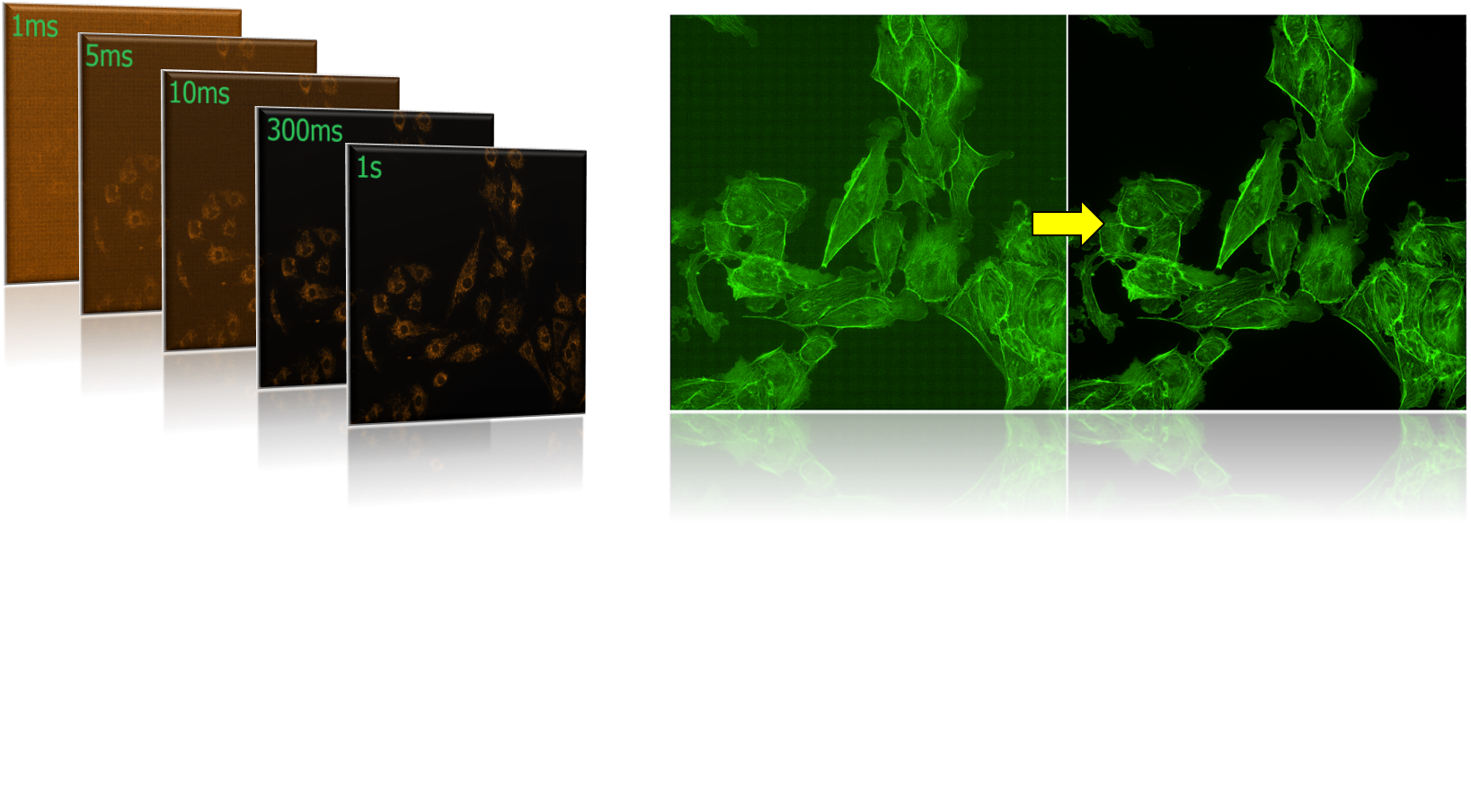
This function improves the quality of input images. Typically, users collect dataset by capturing the same sample at both low and high exposure times. The network learns to transform low-quality images into high-quality counterparts.
This allows users to analyze samples captured at lower exposures, reducing light toxicity, minimizing photobleaching, and preserving longer cell viability.
Example: FITC channel
Convert.ai
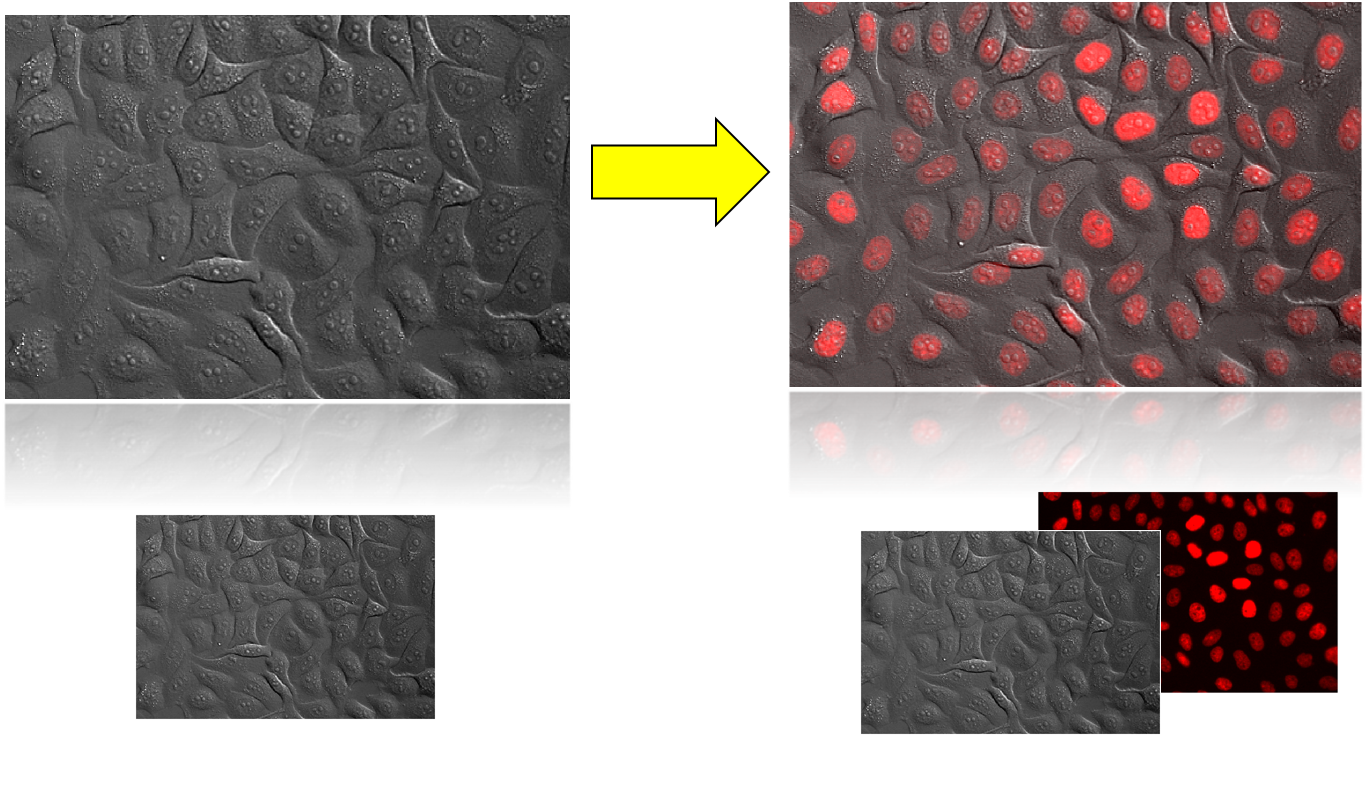
Convert.ai enables transformation between imaging modalities. A common use case is converting transmitted light images (e.g., Brightfield, DIC) to fluorescence images. After training, fluorescence acquisition is no longer necessary, as the model can generate synthetic fluorescence images directly from transmitted light inputs.
Example: Original Image (Brightfield) -> Resulting Image (Brightfield + Fluorescent Channel)
Segment.ai
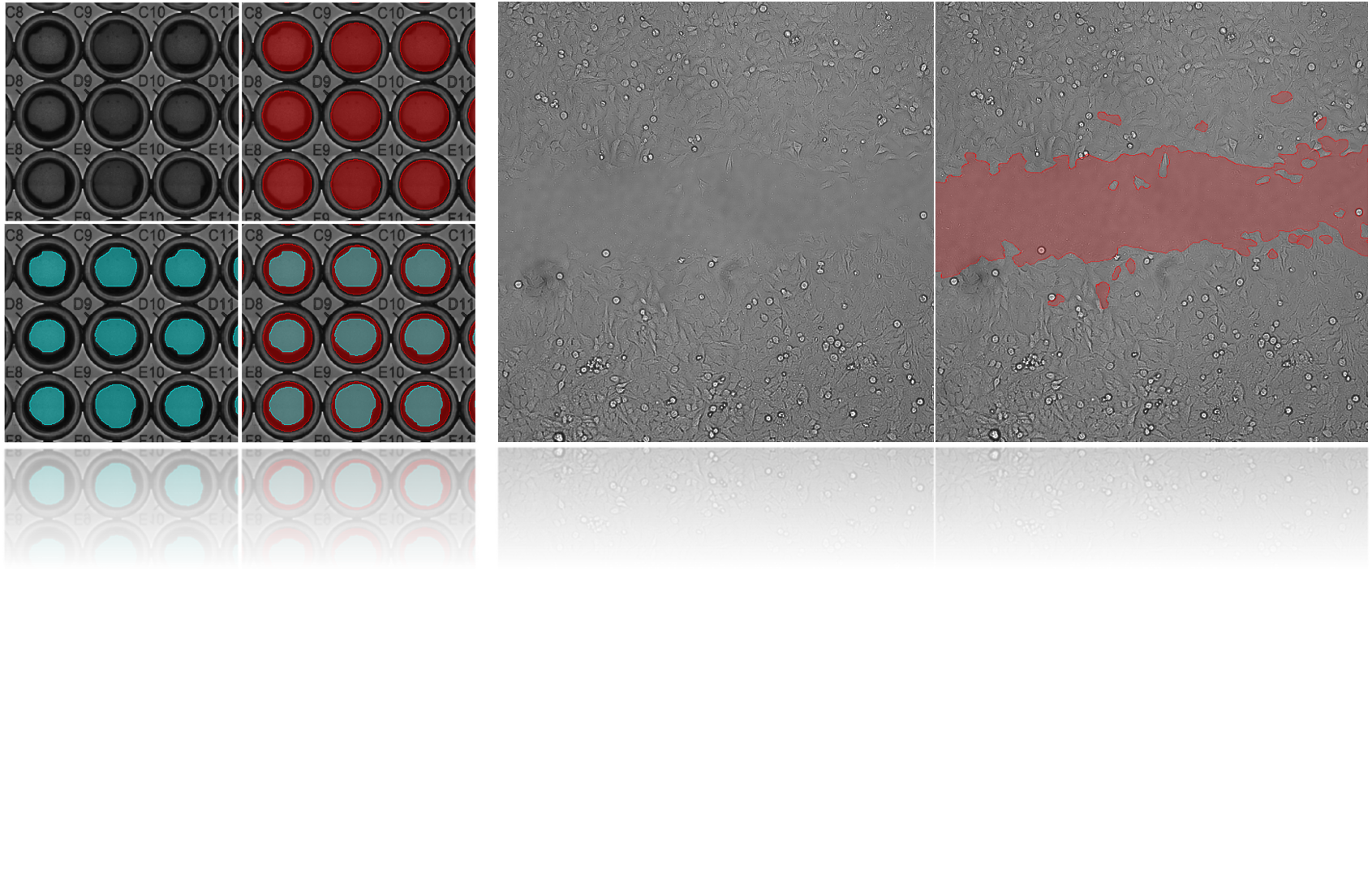
Segment.ai is designed for semantic segmentation, identifying and marking specific regions or areas within images.
Examples: Wellplate segmentation, Wound healing
Segment Objects.ai
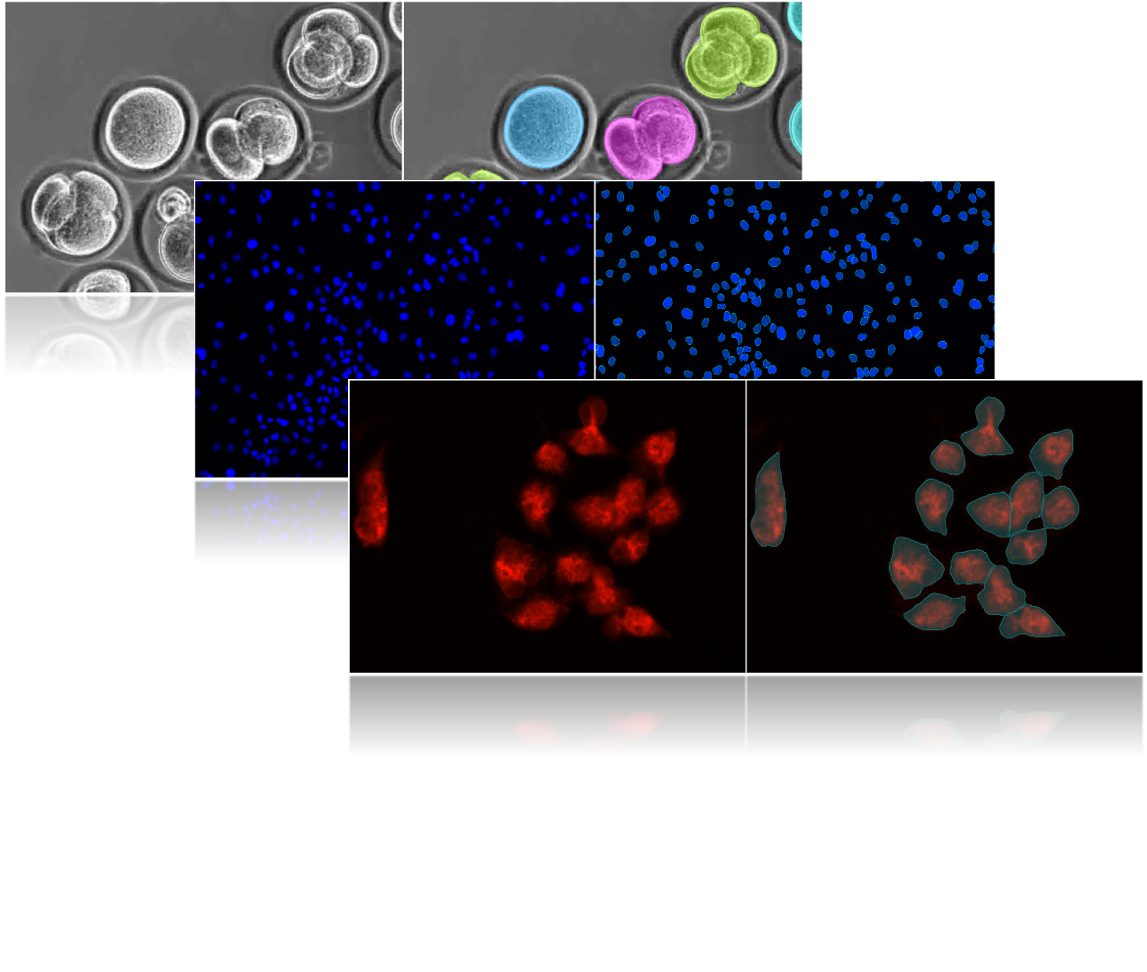
This function performs instance segmentation, identifying individual objects (e.g., nuclei) as separate entities. It is intended for round-shaped objects and pays special attention to boundary regions to correctly separate them. It assumes that objects do not contain internal holes.
Examples: Embryo stage classification, Nuclei detection, Cell mask detection
Section: NIS.ai Explorer
List of networks
Any trained network can be found listed in the NIS.ai Explorer page. These networks can then be listed or sorted based on user preference by clicking on Arrow icon next to the search box. Search box allows users to find any network by name.
Only user-trainable networks can be listed here, that means Segment Objects.ai, Segment.ai, Enhance.ai and Convert.ai.
Pre-trained networks such as Denoise.ai or Clarify.ai cannot be listed here.
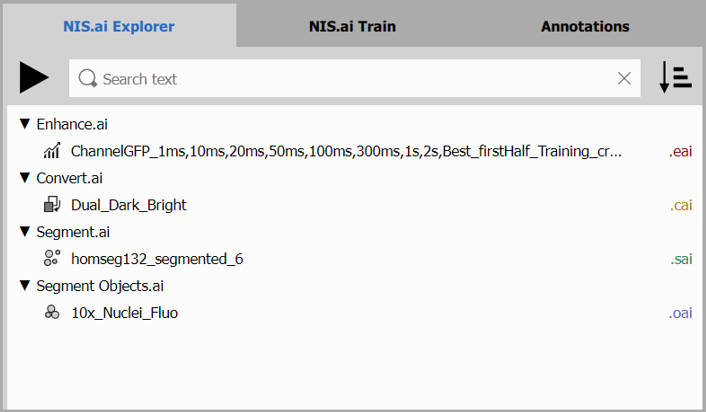 By right-clicking on any of the networks, user can either Run, Rename, Delete or Open the file location of the network.
Execute Network
- By selecting any on the listed networks and clicking on Run, next step will be opened.
Whenever possible, Source AI channels will automatically be linked to the correct Document channel.
Before running any network on a document, user can define names of new channels or binaries,view details of the selected network and add smooth option for Segment.ai and Segment Objects.ai.
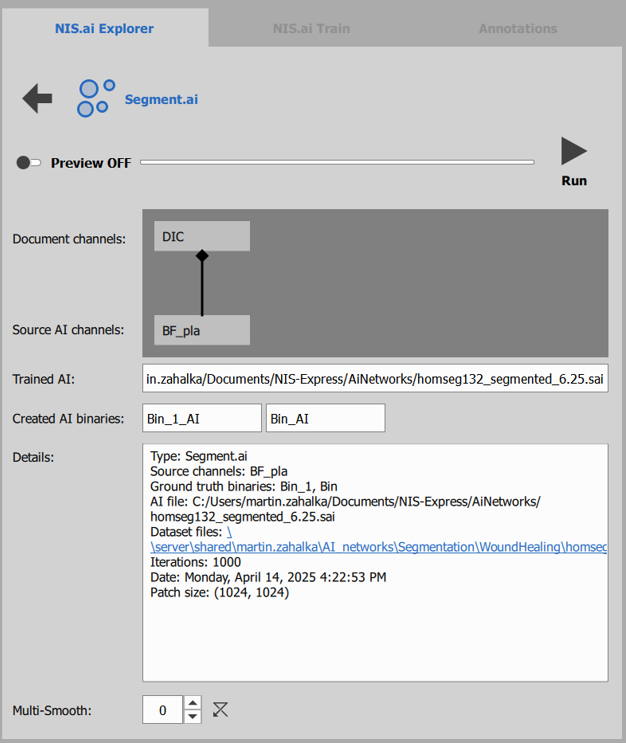 Before executing the run on the entire document, Preview can be viewed to check results on current frame or document.
- Click on “Run” on top of the page to execute the network.
Section: NIS.ai Train
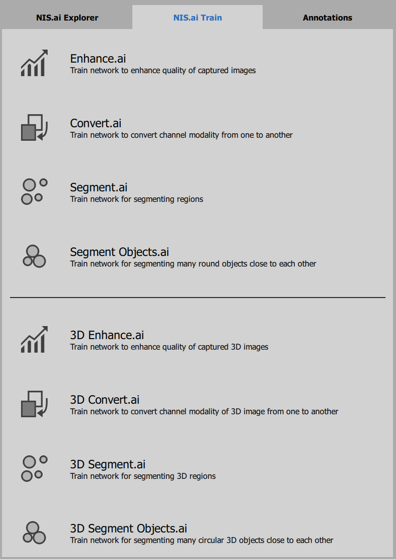
NIS.ai Train page shows all user-trainable networks such as Enhance.ai, Convert.ai, Segment.ai and Segment Objects.ai. These are then split into 2D and 3D sections.
Select Network
In order to start training any network, select your type of training and proceed to the next step.
Select Data
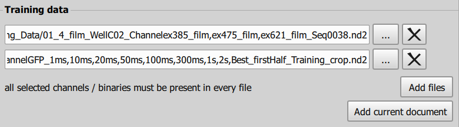
In “Training Data” section, select data by clicking “Add files” and “Add current document” in order to show options for “Channels” section.
Choose Channel & Ground Truth
In “Channels” section, select your Source AI channel and Ground truth binary
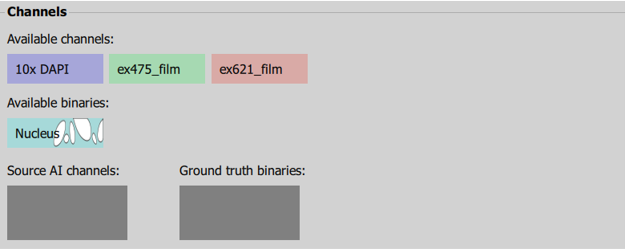
In this case, we selected to train Segment Objects.ai network and the “Nucleus” binary mask will be trained on “10x DAPI” channel.
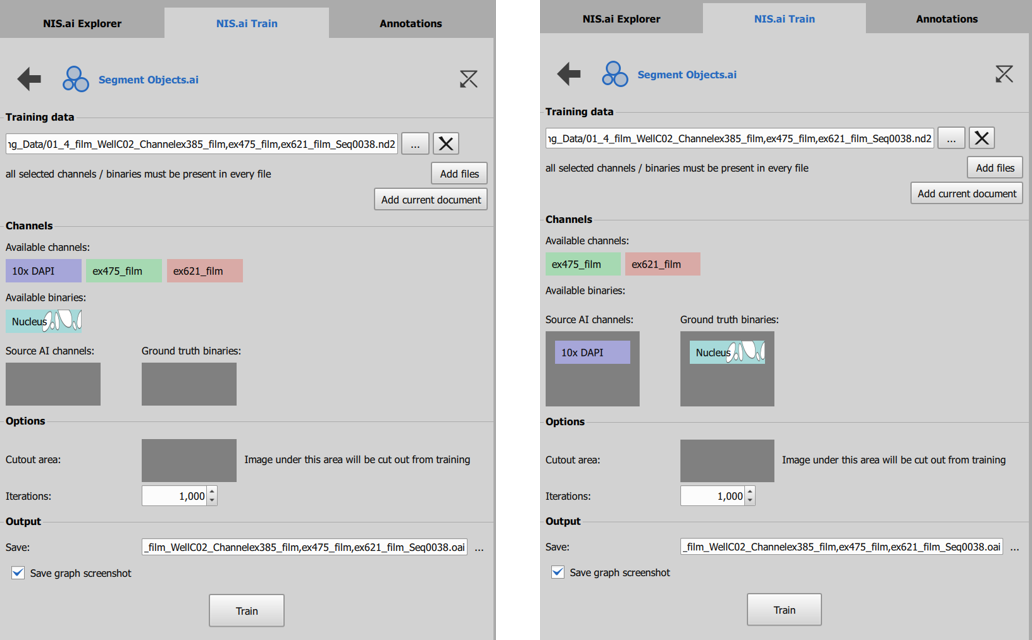
Iterations
“Cutout Area” option is available for Segment Objects.ai and Segment.ai. If there are sections of image you do not wish to be included in training (difficult to segment, unsure or any other reason), create a separate layer over the section and fill the “Cutout area” box using this binary mask. The trained network – in this case Nuclei, will not be trained on this section of the image.
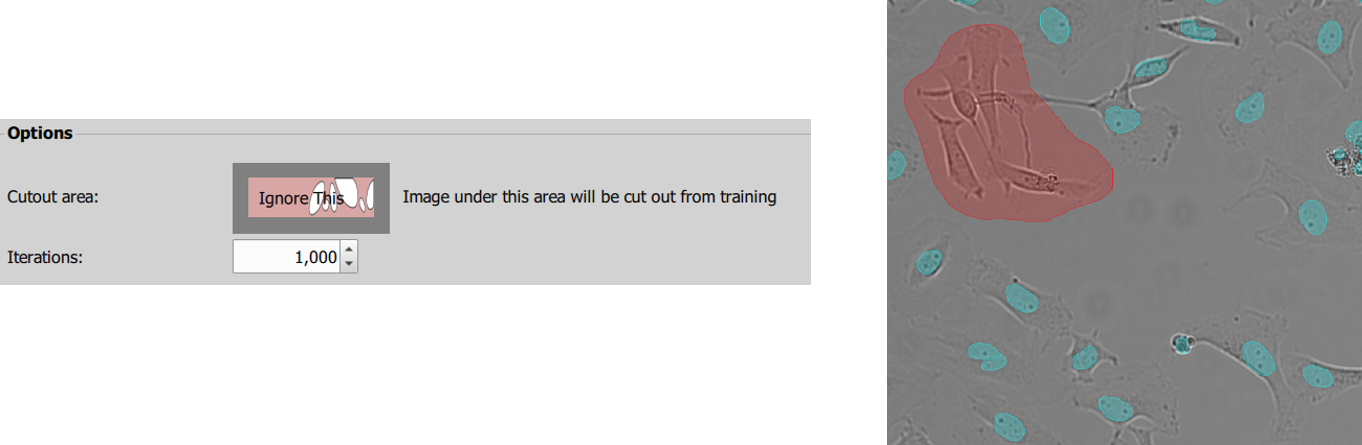
To define correct Iteration number, use this general rule of thumb:
- Alpha testing classifier: 20 iterations using just a couple images
- Small dataset: 500 iterations
- Standard dataset: 1000 iterations
- Large datasets: 2000 iterations
Section: Annotations
In order to train Segment.ai or Segment Objects.ai, all queued up data needs to be annotated. Creating annotations (also called mask / binary layer) can be done in this section of the module. For 2D documents and training, annotate all objects on any data you wish to train network on. Follow next sections to learn about basic rules to successfully prepare data for AI segmentation training.
A) Tools to edit mask (Binary layer)
Use tools in top left “Draw / Edit” section to create mask
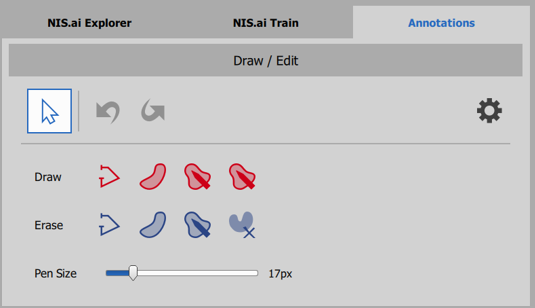
Follow Annotation Guidelines
Each individual mask is listed separately in the “Overlay” section
- Individual masks serve as separate object classes for AI training
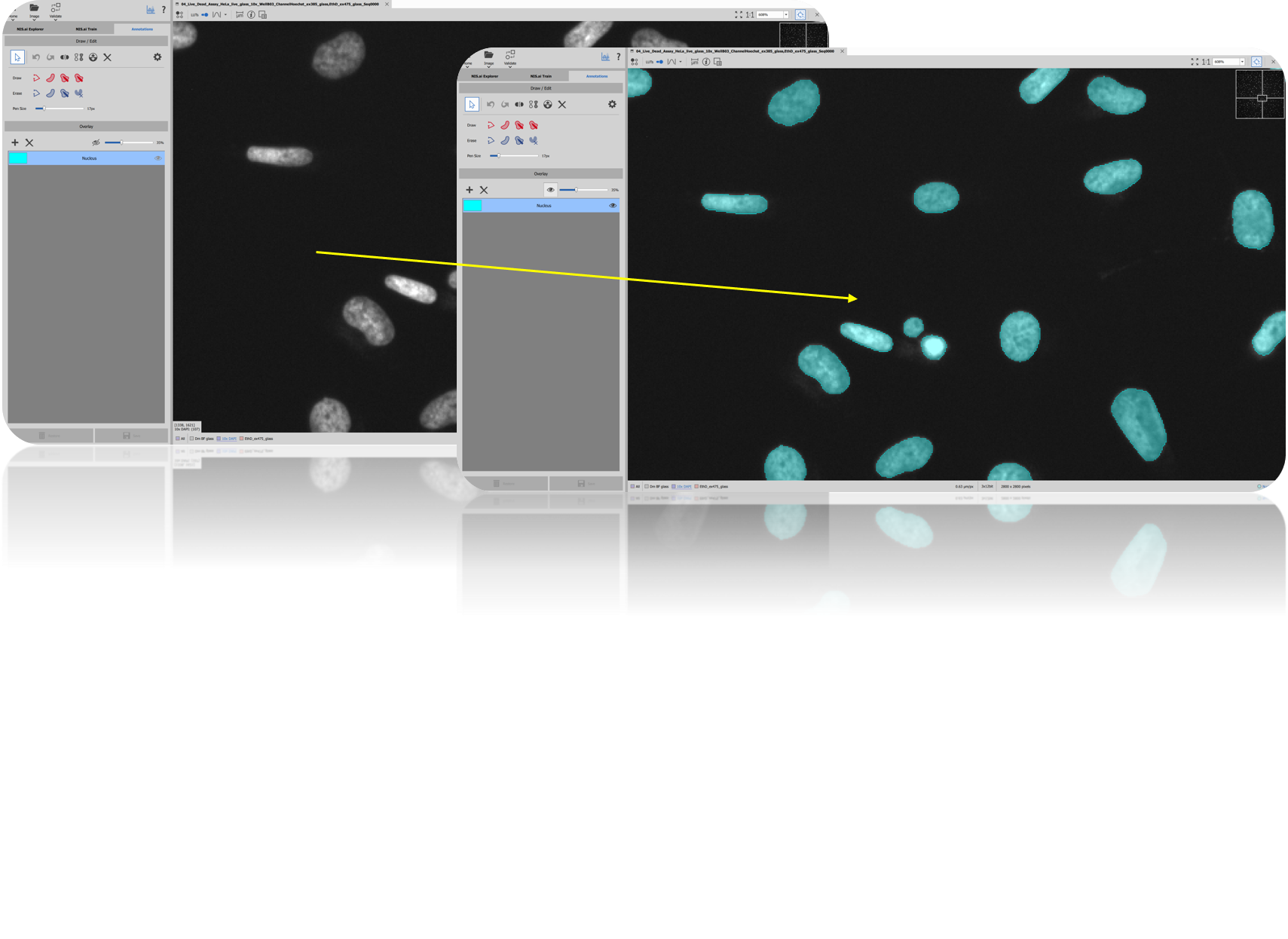
- When finished editing, click on “Save” to save the mask.
B) Annotation Guidelines
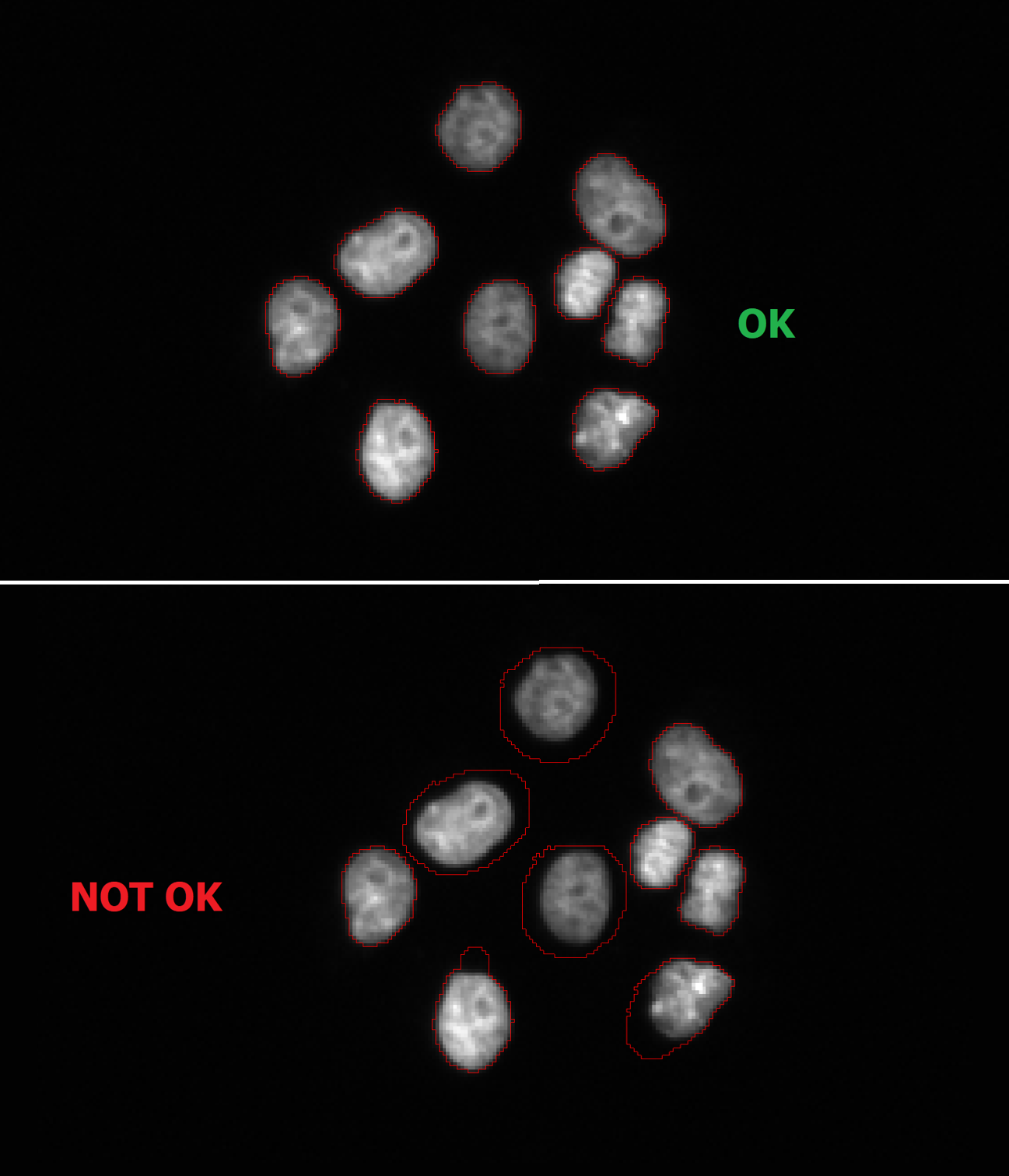
Certain annotation rules and tips are strongly recommended to achieve the best results while training AI networks. These are tips and rules to follow:
Annotate all objects
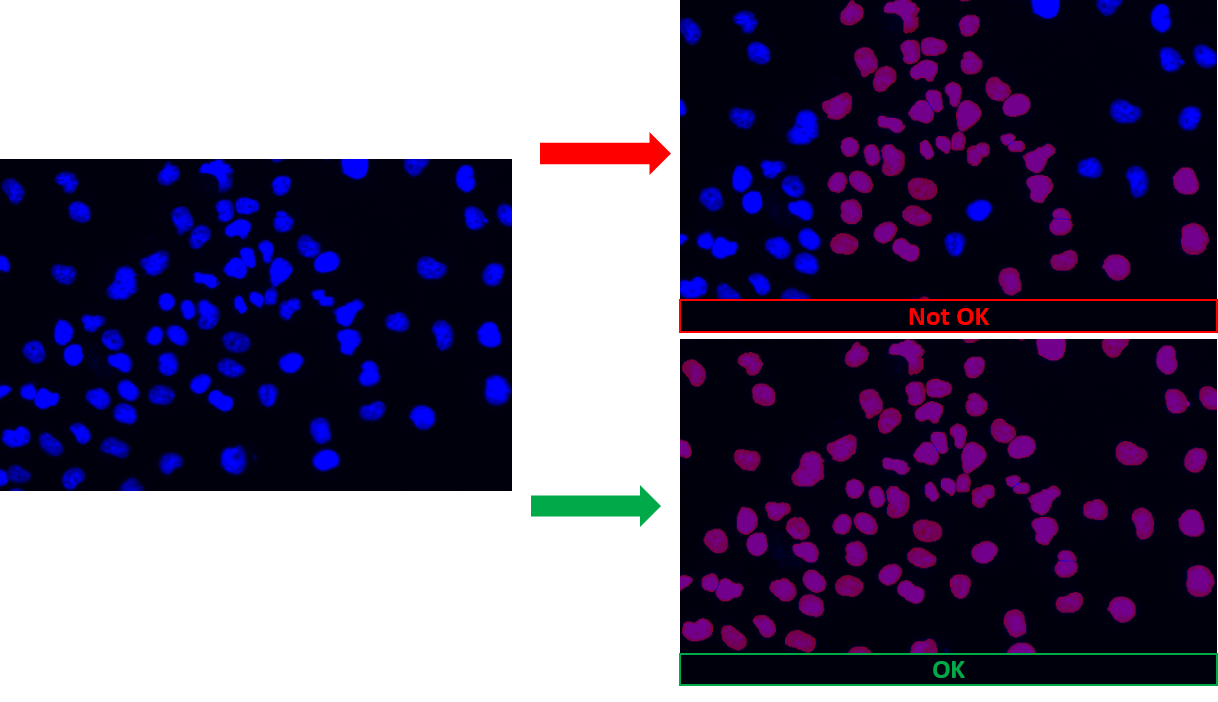
Stay consistent
Change Binary Layer color setting to “Color by Object” to easily spot incorrectly segmented objects before AI training
- Especially helpful for touching objects
Use additional tools
- Remove 1px objects (when desired)
- Use soft smooth function
C) Dataset Guidelines
- Note and list details about Scanning conditions of used data
- Keep track of used files for both Training / Validation datasets
- Use at least 10% of all data for validation of the training results
- (90% used for training, 10% for verification)
- “The more the better” (only to contain all representative objects/intensities)
- Necessary inclusion of all objects to be learned
- Crucial for documents with different intensity or background
- Combine files into one larger ND2 document whenever possible
- Iteration rule of thumb:
- Alpha testing classifier: 20 iterations using just a couple images
- Small dataset: 500 iterations
- Standard dataset: 1000 iterations
- Large datasets: 2000 iterations
D) How to annotate 3D documents
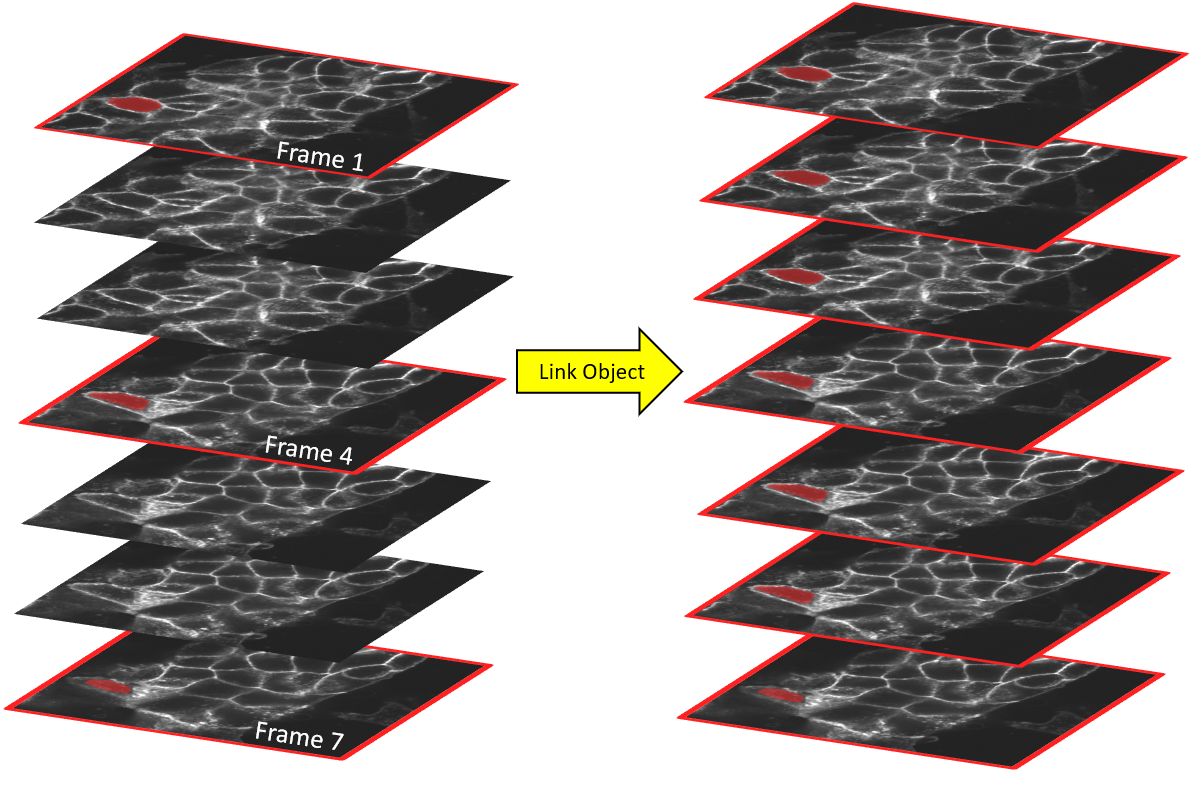
Draw object ID 1 on frame 1
Draw object ID 1 on frame 4
Draw object ID 1 on frame 7
Link objects together -> Get a full 3D Object
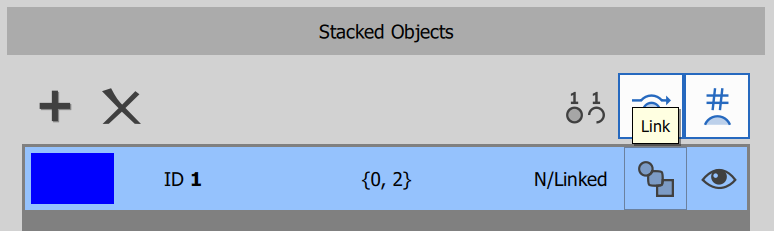
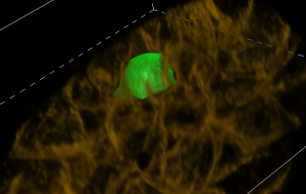
Verify object in 3D view (Volume View)
Repeat for all remaining objects
Proceed to train 3D Segment Objects.ai or Segment.ai